Account and Subscription Management
Guidance on managing user credentials and subscriptions within the Xops 360 Platform.
Account Management
Updating User Credentials
Maintaining account security requires regularly updating user credentials. Follow these instructions to modify your password securely.
-
Log in to the Platform
- Access the platform and sign in using your credentials.
- Access the platform and sign in using your credentials.
- Access the Profile Page
- Locate the user profile section in the bottom-left corner of the sidebar where your email and avatar are displayed.
- Click on it to open the profile options menu.
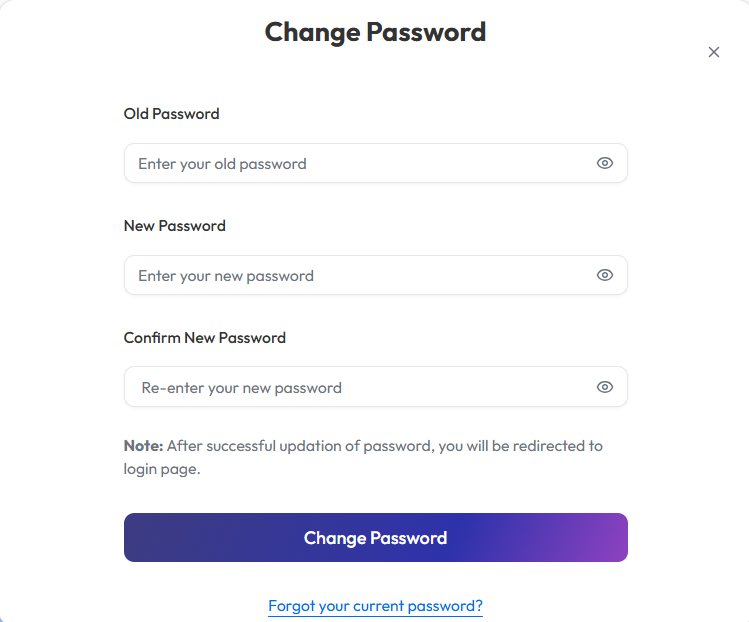
- Select "Change Password"
- Within the Profile page, find the "Change Password" option.
- Within the Profile page, find the "Change Password" option.
- Follow the Password Change Process
- Enter your current password for verification.
- Provide a new password following the password policy guidelines (if applicable).
- Confirm the new password by entering it again.
- Save Changes
- Click on "Submit" to confirm the password change.
- After successfully updating your password, you will be redirected to the login page.
Forgot Password
Resetting your password is straightforward if you have forgotten it. Follow these steps to securely regain access to your account.
- Open the Forgot Password Page
Navigate to the login page and click on the “Forgot password?” link below the login form. - Enter Registered Email Address
Provide your registered Email Address in the input field. - Request Password Reset Link
Click on the "Send" button. A password reset link will be sent to your registered email. - Check Email Inbox
Go to your email inbox and look for the password reset email. If not found, check your spam or junk folder. - Follow the Password Reset Link
Click the reset link in the email to open the password creation page. - Set a New Password
Enter your new password following the password guidelines. Confirm the new password by entering it a second time. - Complete the Process
Click "Submit" or "Reset Password" to finalize the change. You can now log in with your new password.
Password Guidelines:
Use at least 8 characters (including alphanumeric and special symbols password required).
Avoid common words, sequential numbers, or personal details.
Managing Subscriptions
Subscription Configuration
Directions for managing subscription details, including upgrades, downgrades, and cancellations.
- Log in to the Platform
- Access the platform and sign in using your credentials.
- Access the Profile Page
- Locate the Profile icon or menu option in the top-right corner of the interface.
- Hover on it to open the profile settings, to open a drop down menu.
- Access the Subscription Menu
- From the list of options, select Subscription.
- Redirect to the Subscription Page
- After selecting Subscription, the portal will automatically redirect you to the Subscription page where you can view and manage your subscription details.
- After selecting Subscription, the portal will automatically redirect you to the Subscription page where you can view and manage your subscription details.

Upgrade subscription
- Currently not supporting downgrading or cancelling subscription plans. Users can only upgrade their subscription.

- Subscription upgrades cannot be processed directly through the portal. To upgrade your plan, click on Upgrade as shown in the image above. You will be prompted to submit a request by clicking the designated request form. Upon selection, a pop-up form will appear, requiring you to provide the following details:
- Subject: Specify the request type (e.g., "Upgrade to Advanced Plan").
- Description: Provide details about your upgrade request.
- Once submitted, our team will review your request and process the upgrade accordingly.
