# Azure Account Integration
### **Link Azure Account**
#### **Navigating to the Integrations Page**
- **Log in to the Platform**
- Access the platform and sign in using your credentials.
- **Open the Integrations Section**
- Locate the side navigation panel on the left.
- Click on the **Integrations** tab.
- **Select Azure Integration**
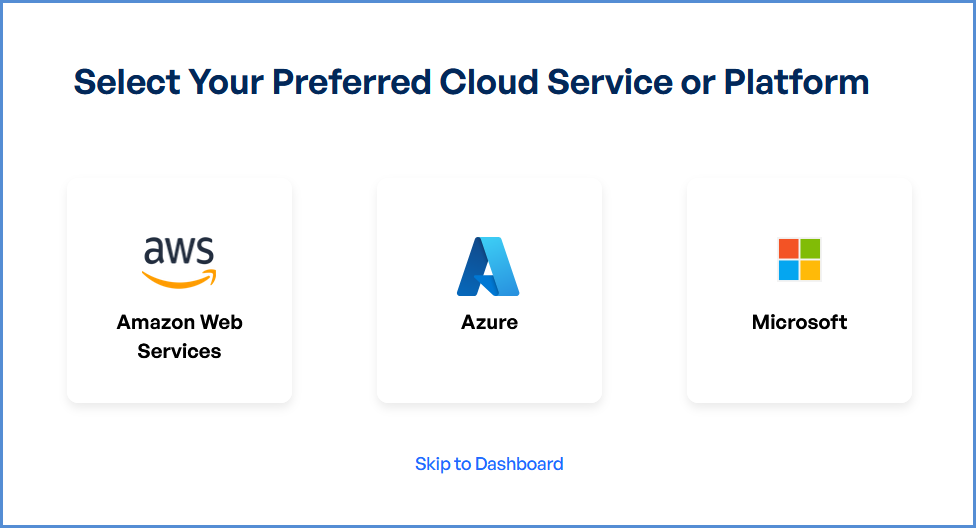
- On the Integrations page, you will see available options for **AWS, Azure, and Microsoft accounts**.
- Click on the **Azure card** to open the “Link a New Azure Account” page.
[](https://xops-docs.axiomio.com/uploads/images/gallery/2025-01/wHf6mDfxuPWl23ZH-arhimage.png)
Note: Follow **Initiating Azure Integration** steps to Connect Azure Account in Xops 360, ensure that the following permissions are assigned
### **Initiating Azure Integration**
##### **Registering an Application in Azure**
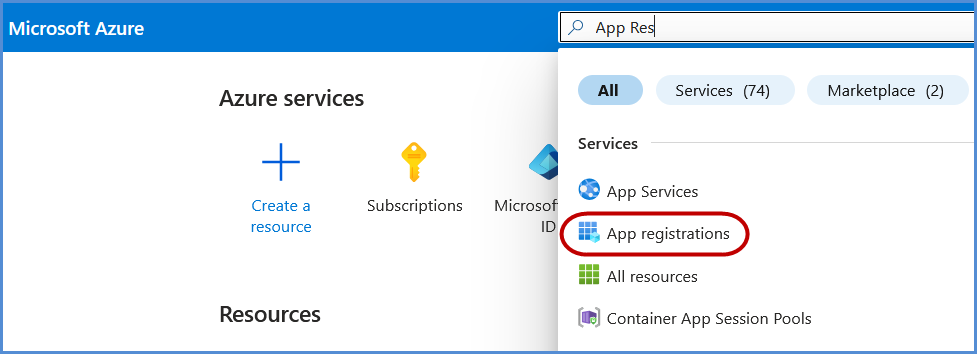
- Navigate to the **[Azure Portal](https://portal.azure.com/)**.
- In the search bar, enter **App Registrations** and select it from the results.
[](https://xops-docs.axiomio.com/uploads/images/gallery/2025-02/4Lc6QceMq5jy4kF9-image.png)
- Click on **New Registration**.
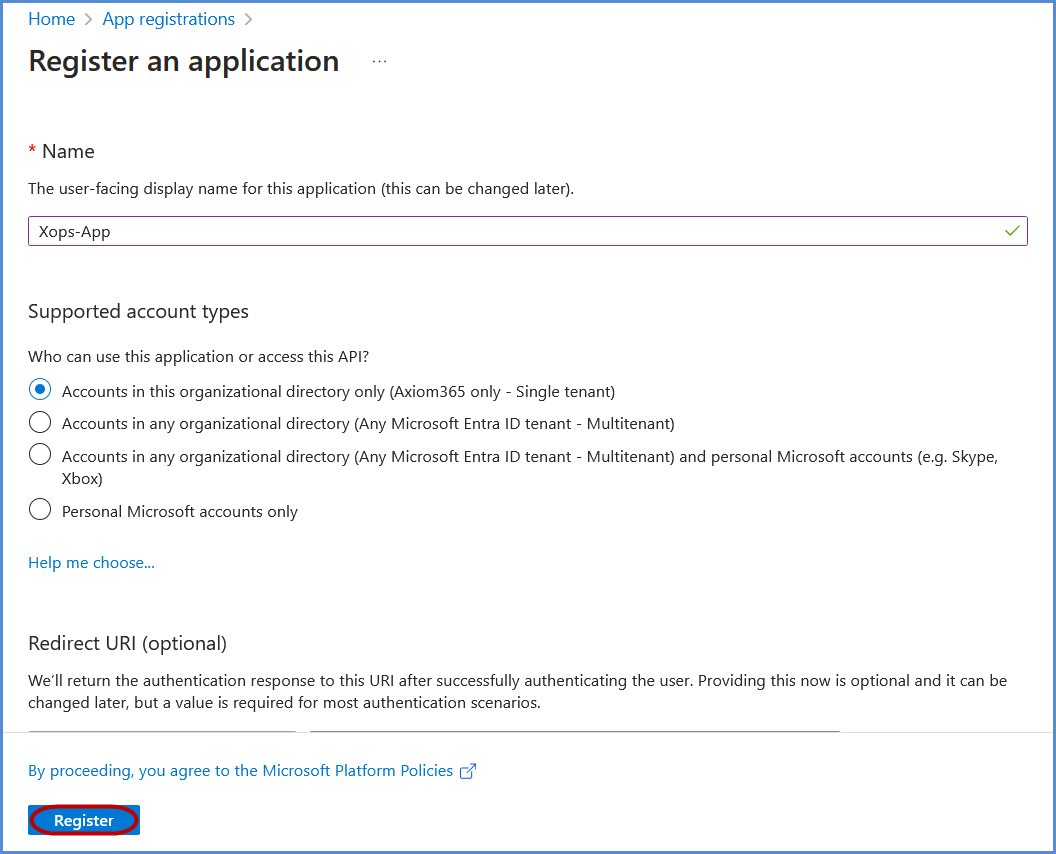
- Register the application:
- Provide a name for the application.
- Under **Supported account types**, select **Accounts in this organizational directory only** if not set by default.
- Click **Register** to complete the process.
[](https://xops-docs.axiomio.com/uploads/images/gallery/2025-02/h8HsC98CUOcHJiO6-image.png)
##### **Assigning Entra ID Permissions**
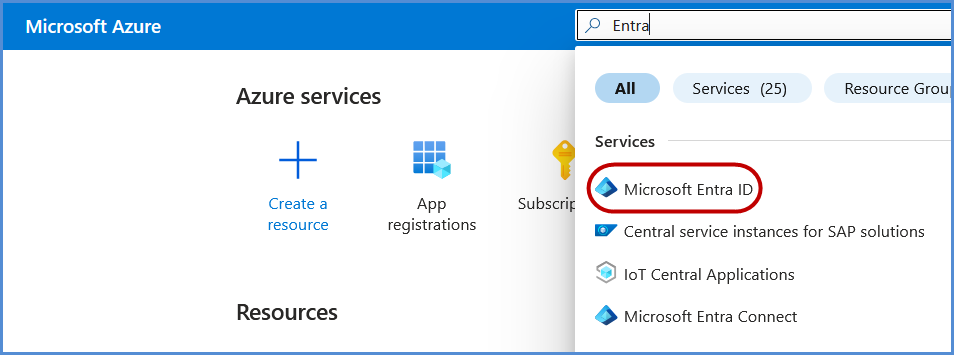
- In the **[Azure Portal](https://portal.azure.com/)**, search for **Entra ID** and select it.
[](https://xops-docs.axiomio.com/uploads/images/gallery/2025-02/L9iBvBc1x3Td09h5-image.png)
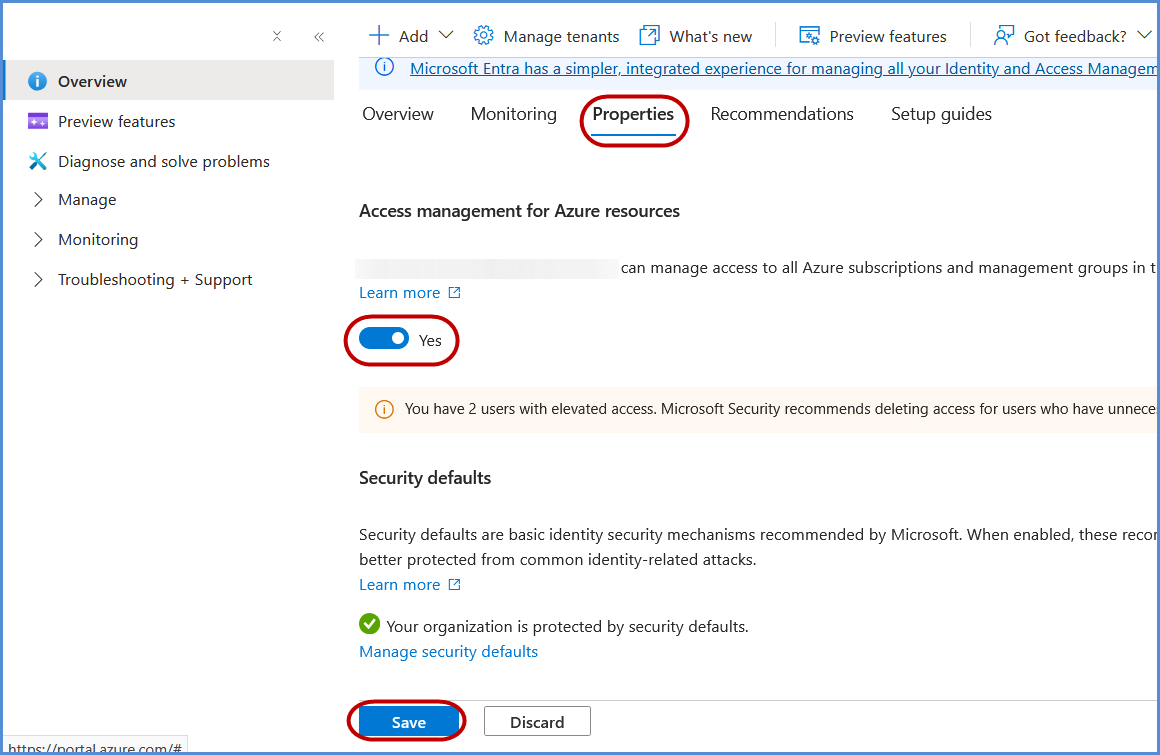
- Navigate to **Properties**, then locate the setting **Access management for Azure resources** and toggle it to **Yes**.
[](https://xops-docs.axiomio.com/uploads/images/gallery/2025-02/Ouzk4HM4rqSK8Ix1-image.png)
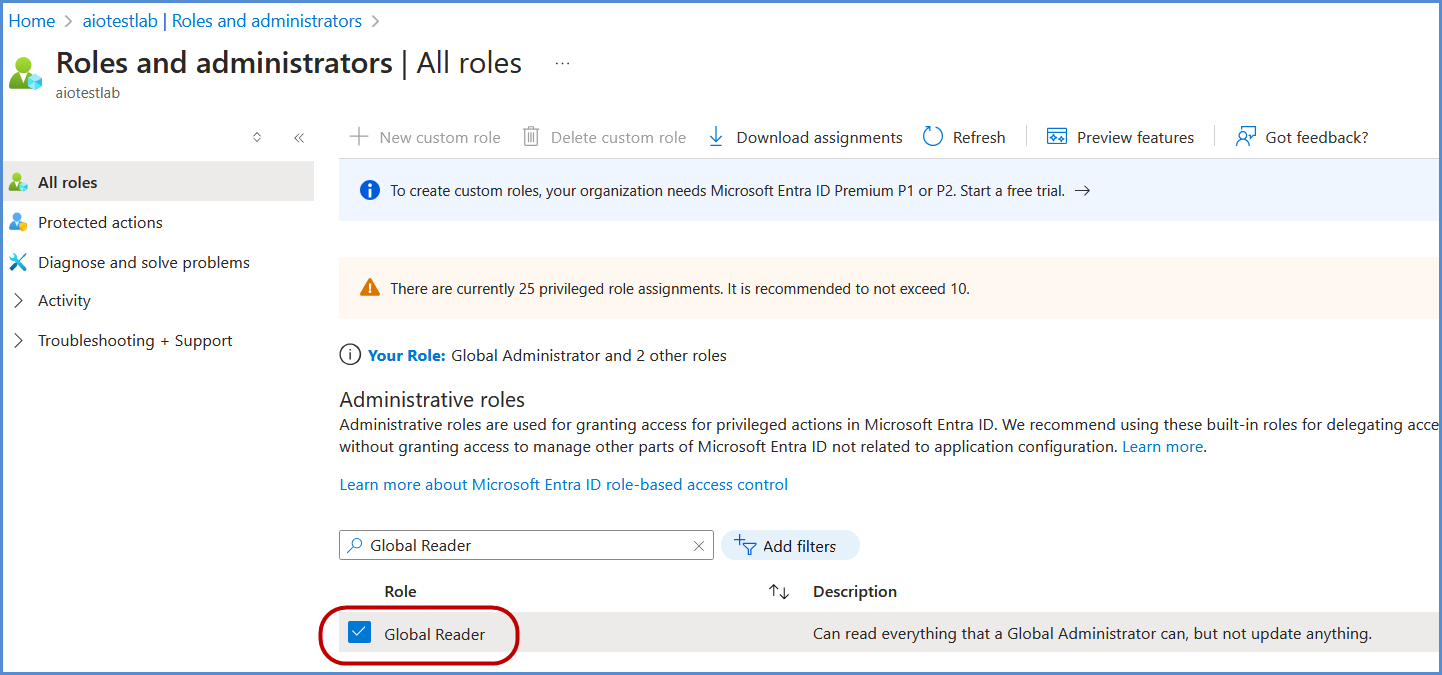
- Go to **Overview**, and in the left navigation pane, click **Roles and Administrators**.
- Search for **Global Reader** and select it.
[](https://xops-docs.axiomio.com/uploads/images/gallery/2025-02/b4DzjZ5SRsJ7og4O-image.png)
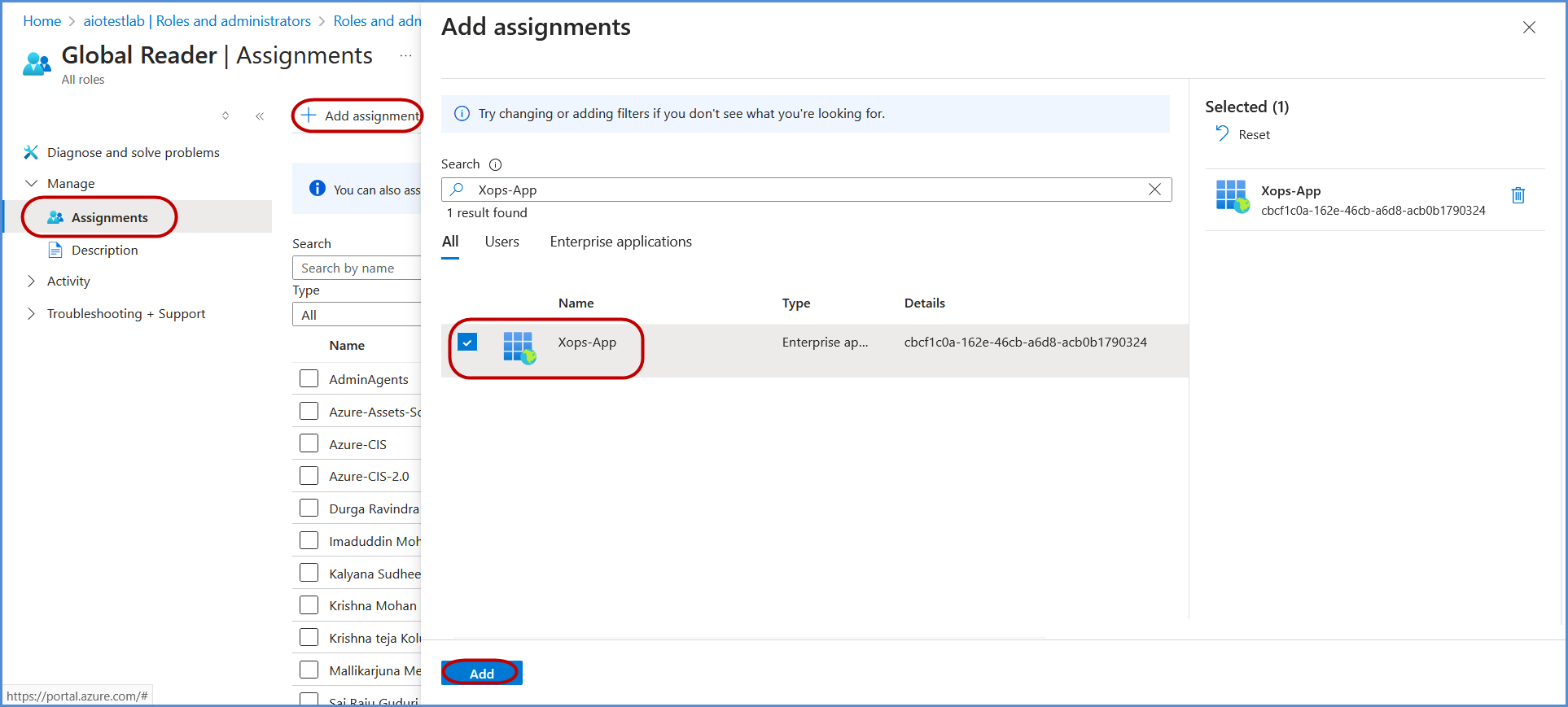
- Under **Assignments**, search for the application registered in the previous step, select it, and click **Add** to grant the **Global Reader** role to the application.
[](https://xops-docs.axiomio.com/uploads/images/gallery/2025-02/QH80y1LuvfNIoqxQ-image.png)
##### **Assigning Management Group Permissions**
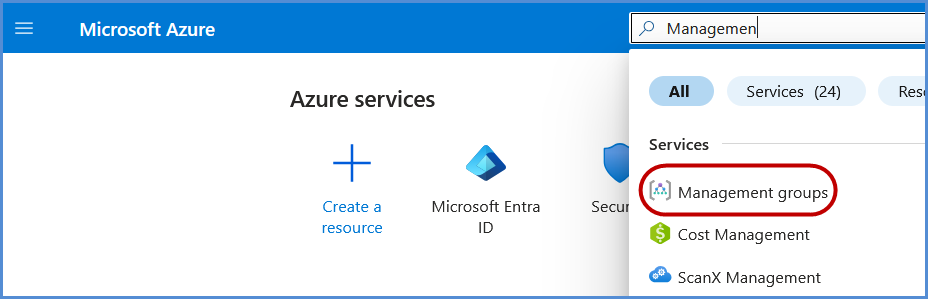
- In the **Azure Portal**, search for **Management Groups** and select it.
[](https://xops-docs.axiomio.com/uploads/images/gallery/2025-02/teQywypvkCQI6Yx1-image.png)
- Navigate to **Tenant Group** and select the relevant **Subscription**.
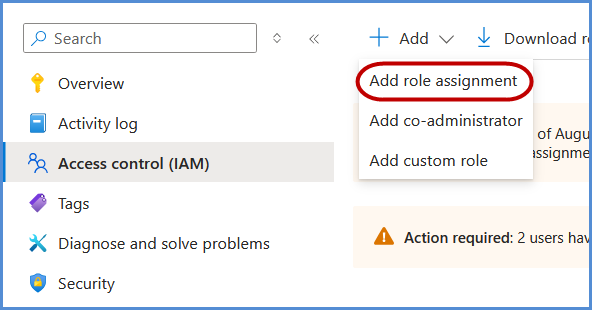
- In the left navigation pane, go to **Access Control (IAM)** and click **Add**, then select **Add Role Assignment**.
[](https://xops-docs.axiomio.com/uploads/images/gallery/2025-02/bq7qG6x8ZvLAAFvh-image.png)
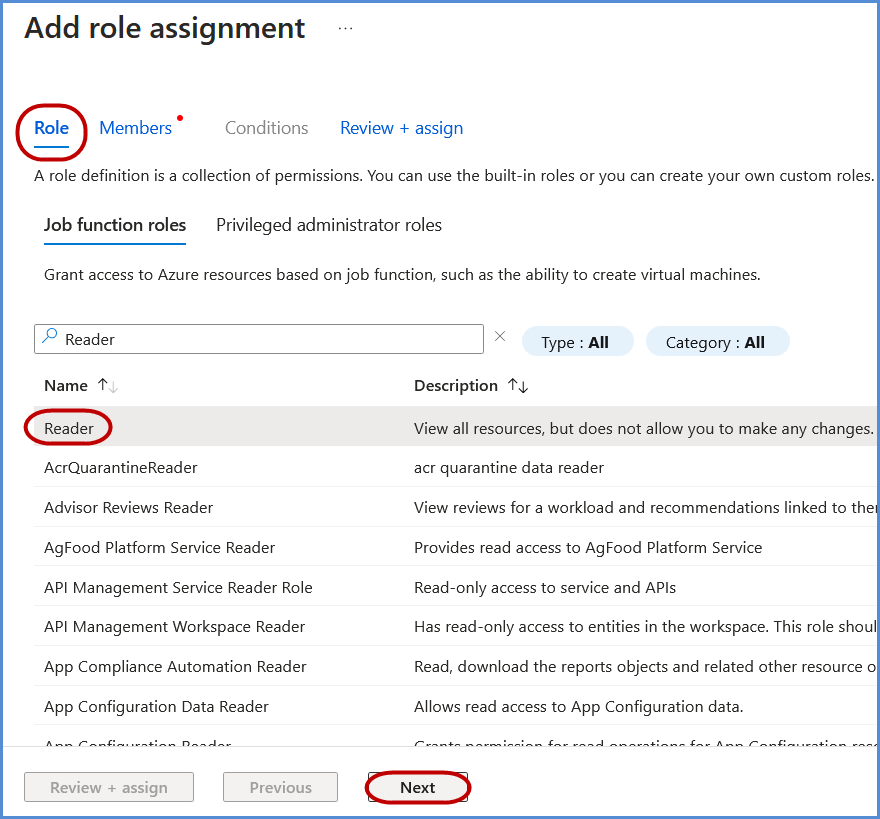
- Under **Roles**, search for **Reader**, select it, and click **Next**.
[](https://xops-docs.axiomio.com/uploads/images/gallery/2025-02/XNV1cxiRWVfYhIE5-image.png)
- Under **Members**, click **Select members**, search for the application name created earlier, and select it.
- Click **Select**, then **Review + Assign** to complete the role assignment.
##### **Assigning Key Vault Reader Permissions (If Applicable)**
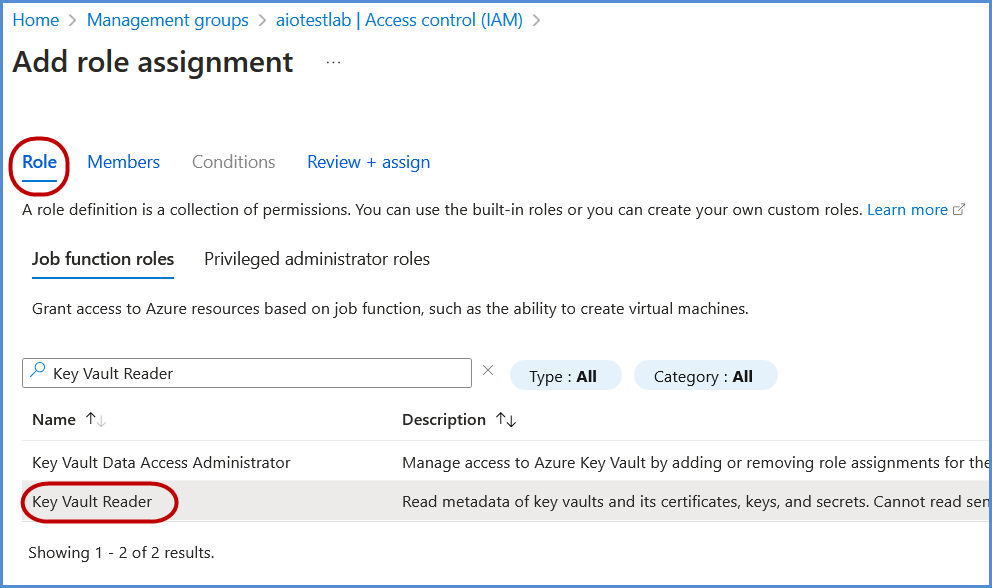
- Follow the same steps as assigning **Global Reader** permissions to grant **Key Vault Reader** permissions.
[](https://xops-docs.axiomio.com/uploads/images/gallery/2025-02/50pw8KsUdO4Gd3o1-image.png)
- If **Key Vaults** are configured with **Access Policies** (instead of **RBAC**), explicit permissions must be assigned to the application:
- Grant **List/Get Keys** and **List Secrets** permissions for each Key Vault.
##### **Assigning Cost Management Reader Permissions (If Applicable)**
Follow the same steps as assigning Global Reader permissions to grant Cost Management Reader permissions.
Grant Cost Management Reader permissions to the application at the required scope (Management Group, Subscription, or Resource Group) to allow read-only access to cost and usage information.
##### **Assigning Billing Reader Permissions (If Applicable)**
Follow the same steps as assigning Global Reader permissions to grant Billing Reader permissions.
Grant Billing Reader permissions to the application at the required billing scope to allow read-only access to billing information, invoices, and payment details.
##### **Adding a Certificate for Authentication**
- Navigate to the previously created **Application Registration**.
- Copy the **Application (Client) ID** and **Directory (Tenant) ID**.
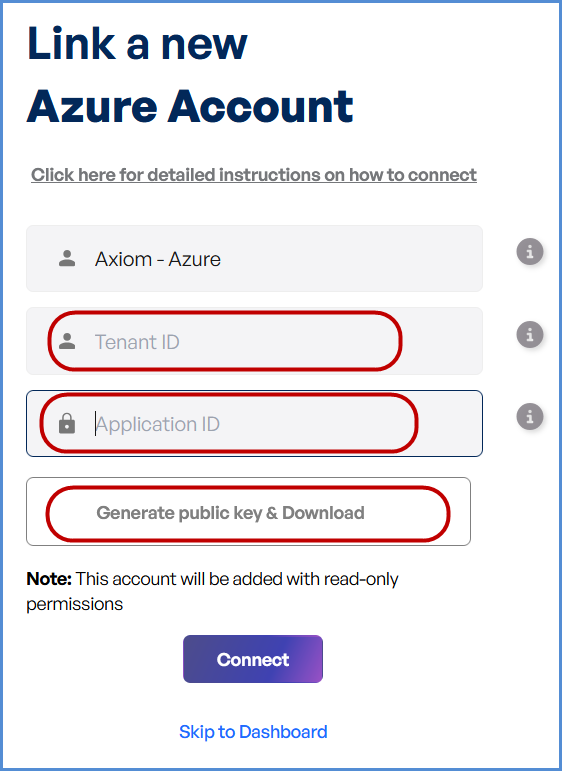
- Access the **[Xops 360 Portal](https://xops.axiomio.com/)** and navigate to **Integrations** , Select **Azure** icon then click on **Add Account**.
- Enter a friendly name for the account.
- Provide the **App ID** and **Tenant ID** copied earlier.
- Click **Generate Public Key & Download** the generated key.
[](https://xops-docs.axiomio.com/uploads/images/gallery/2025-02/zsgnqOnZOsXWxgNm-image.png)
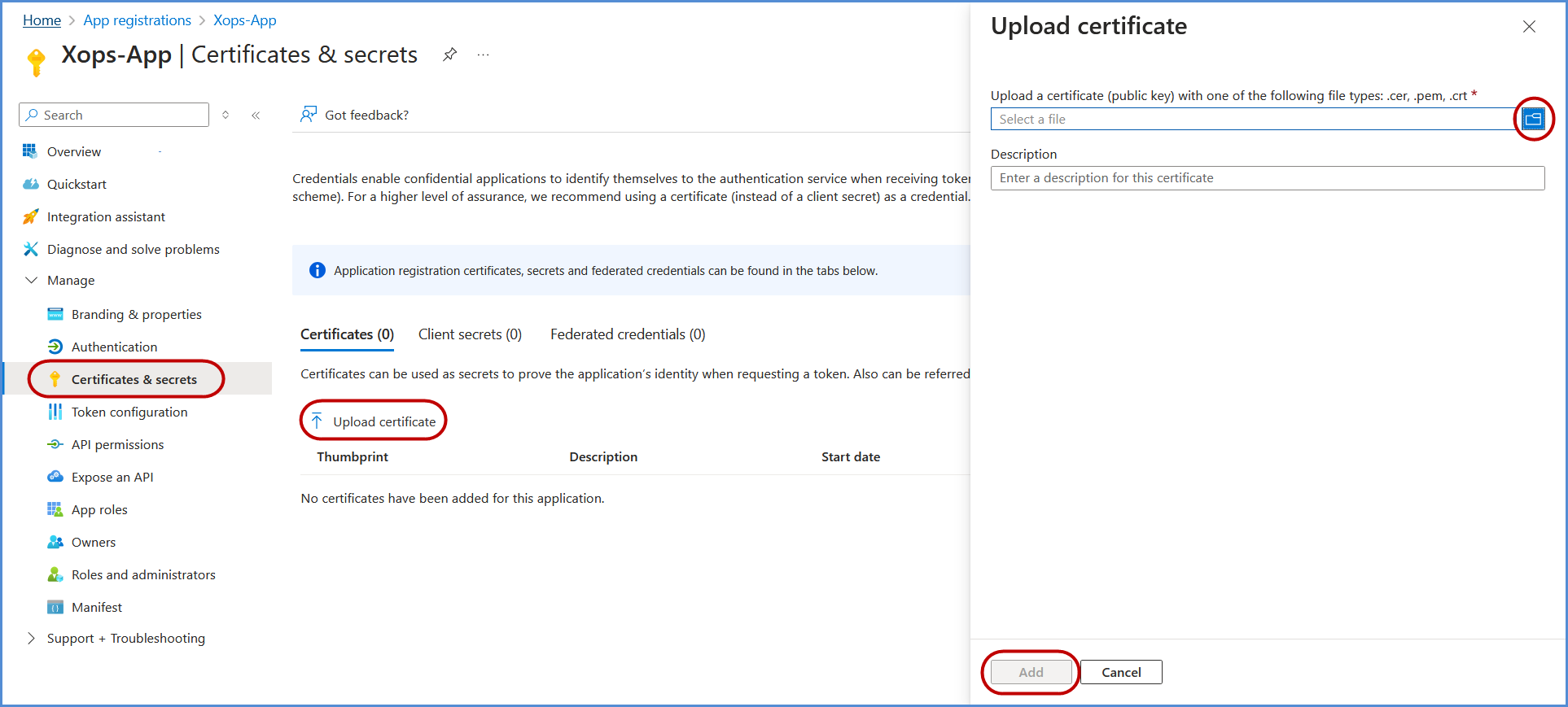
- Return to the **Azure Portal**, open the application, and go to **Manage** > **Certificates & Secrets**.
- Click **Upload Certificate**, select the certificate file downloaded earlier, and click **Add** to complete the upload process.
[](https://xops-docs.axiomio.com/uploads/images/gallery/2025-02/gRf9XelYLknxttzY-image.png)
**Note:**
- For any challenges, please contact our support team at ****
- **First-Time Login Experience**
- - When you log in for the first time, you will be prompted to select your preferred **cloud service or platform** (AWS, Azure, or Microsoft). This selection is required to establish the initial account connection.
- Once your account is successfully connected to AWS, Azure, or Microsoft, this selection screen **will not appear** in subsequent logins. Instead, you will be directed **automatically to the Home page**.
- To manage or modify integrations, navigate to the **"Integrations"** section from the left panel in the dashboard.
### **Managing Azure Subscriptions**
- **Access the Subscription Management Page**
- Log in to the platform with your credentials.
- Navigate to the **Integrations** section, Select Azure icon.
- Select the connected **Azure account** to access the **Subscription Management** page.
#### **Connecting Azure Subscriptions**
- **Edit the Connected Azure Account**
- Locate the Azure account under **Integrations**.
- Click **Edit** to open the subscription management interface.
- **View and Select Subscriptions**
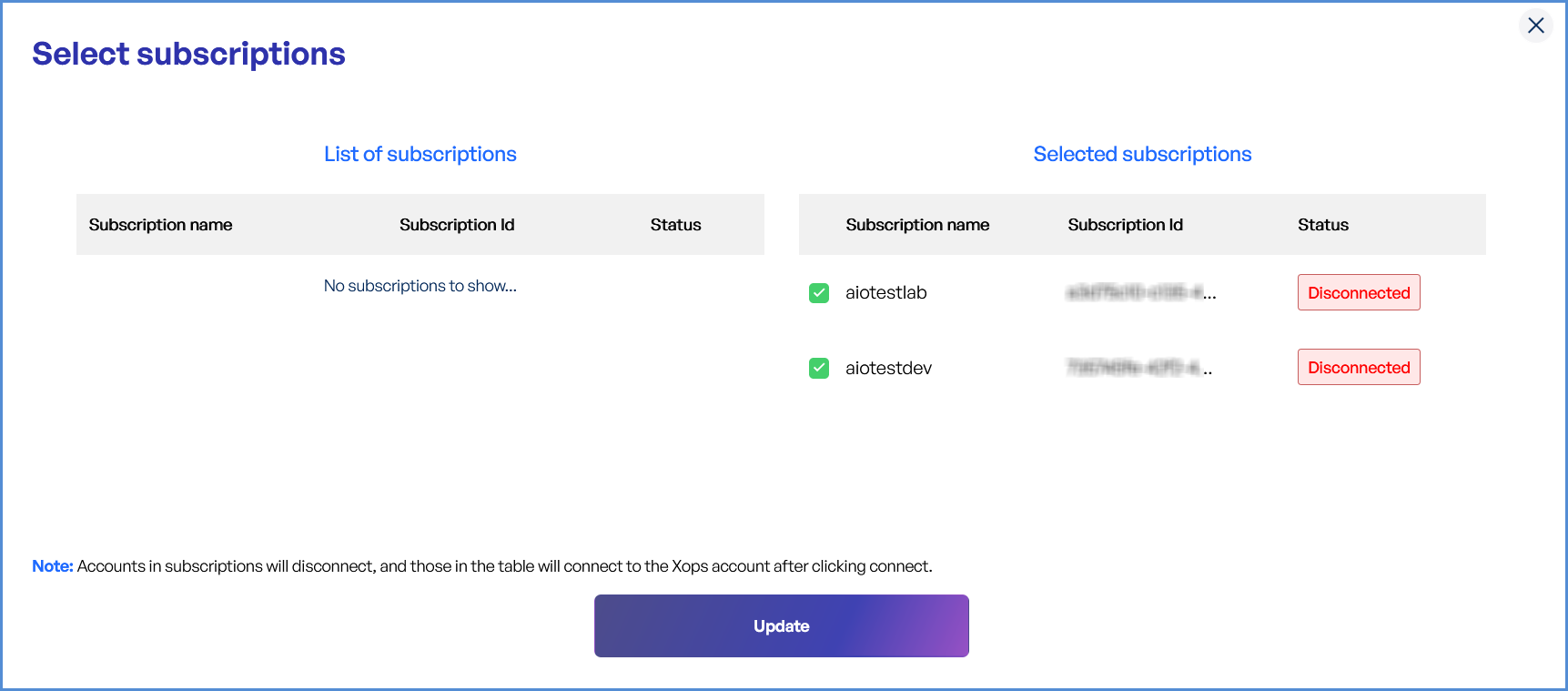
- **List of Subscriptions**: Displays all available Azure subscriptions.
- **Selected Subscriptions**: Highlights currently connected subscriptions.
- **Select Desired Subscriptions**
- Review the list of available subscriptions.
- Check the boxes next to the subscriptions you want to connect.
- **Apply Changes**
- Click **Update** to save and apply changes.
- Newly added subscriptions will be available in the platform.
[](https://xops-docs.axiomio.com/uploads/images/gallery/2025-01/A1znKwMBmEXg1KZR-UA7image.png)
#### **Disconnecting Azure Subscriptions**
- **Edit the Connected Azure Account**
- Go to the **Integrations** section and locate the Azure account.
- Click **Edit** to manage the account’s subscriptions.
- **Deselect Subscriptions**
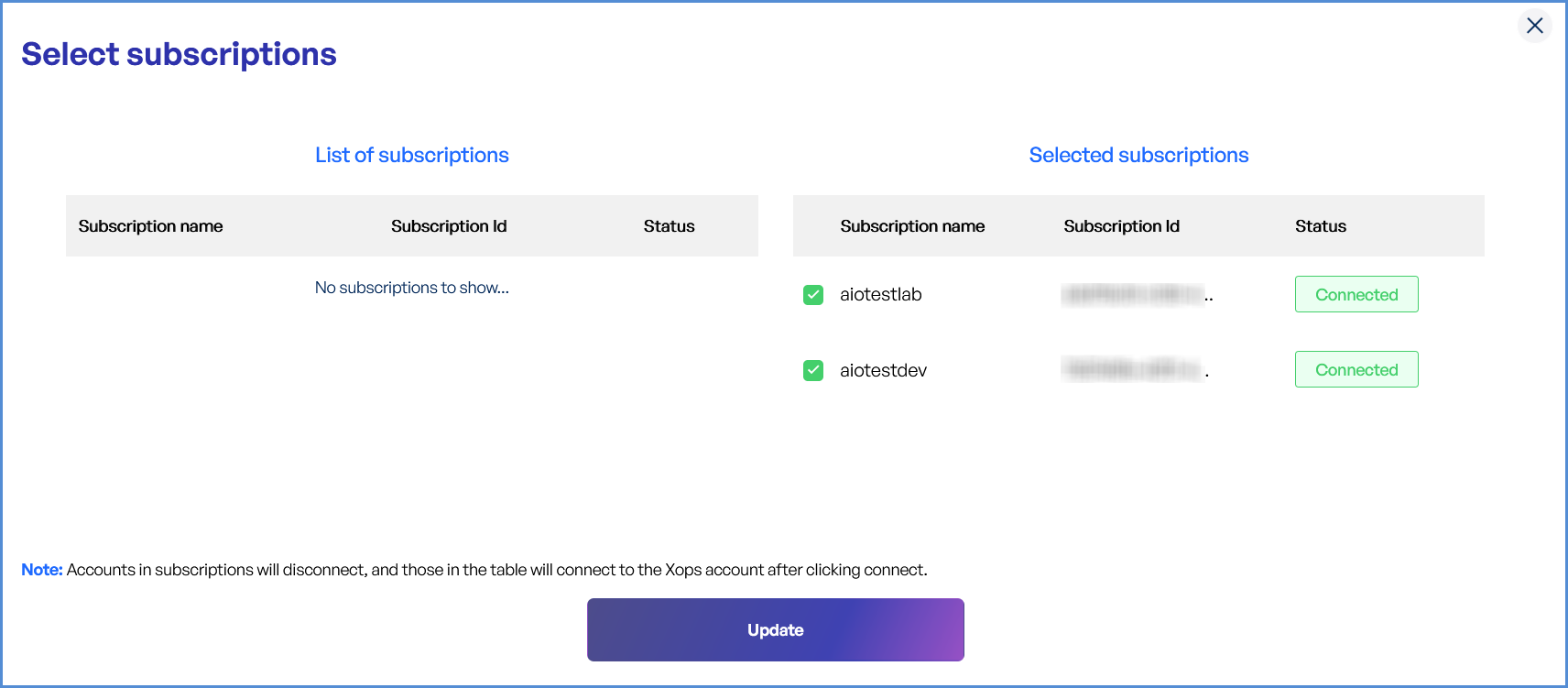
- Under **Selected Subscriptions**, uncheck the subscriptions you want to disconnect.
- **Apply Changes**
- Click **Update** to finalize changes.
- The deselected subscriptions will no longer be associated with your account.
[](https://xops-docs.axiomio.com/uploads/images/gallery/2025-01/JKcHV1iaWWJGvJ3s-0hHimage.png)