Azure Account Integration
Link Azure Account
Navigating to the Integrations Page
-
Log in to the Platform
- Access the platform and sign in using your credentials.
-
Open the Integrations Section
- Locate the side navigation panel on the left.
- Click on the Integrations tab.
-
Select AWS Integration
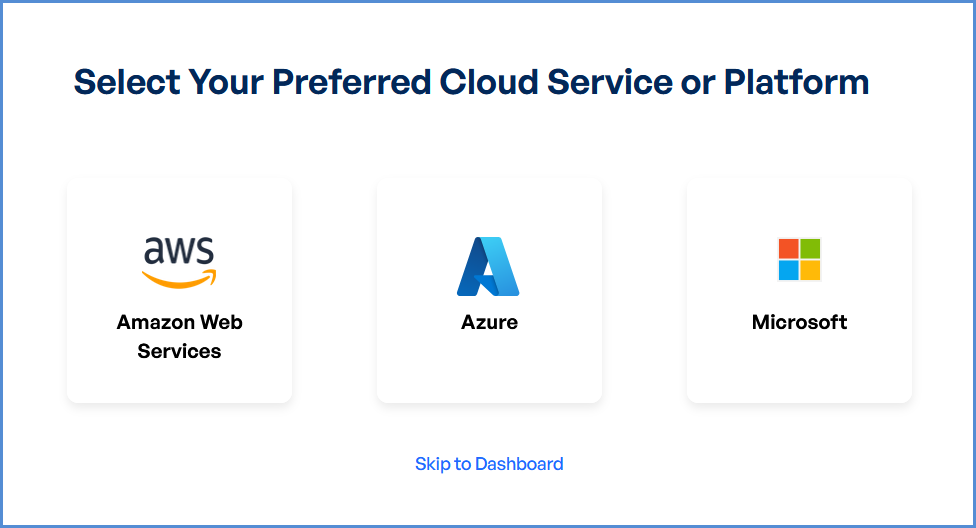
- On the Integrations page, you will see available options for AWS, Azure, and Microsoft accounts.
- Click on the Azure card to open the “Link a New Azure Account” page.
Initiating Azure Integration
- Access Setup Instructions
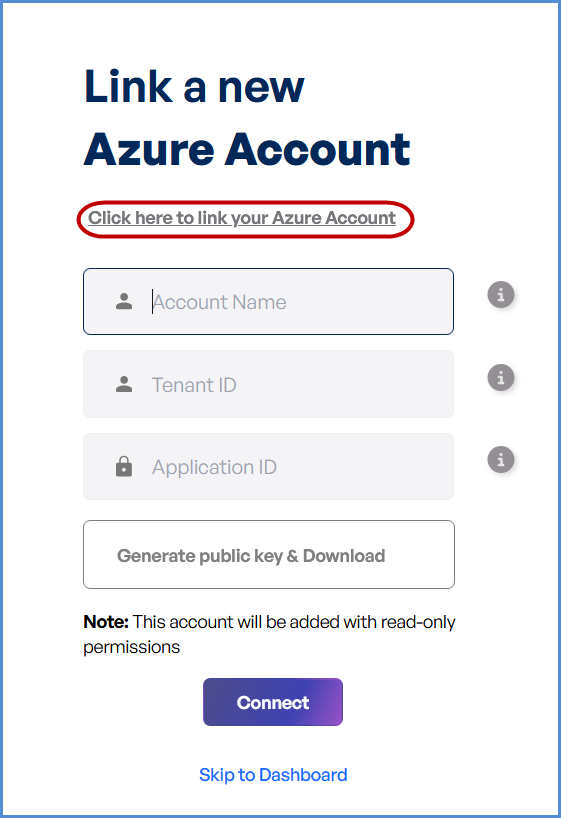
- Click the "Click here for detailed instructions on how to connect" button.
- Retrieve Required Information
- Log in to the Azure Portal.
- Copy the following details:
- Tenant ID
- Application ID
- Configure the Microsoft Account
- Enter a name in the Microsoft Account Name field.
- Paste the Tenant ID and Application ID into their respective fields.
- Click Generate Public Key and download the certificate.
- Upload Certificate
- Upload the public key certificate in the Azure Portal.
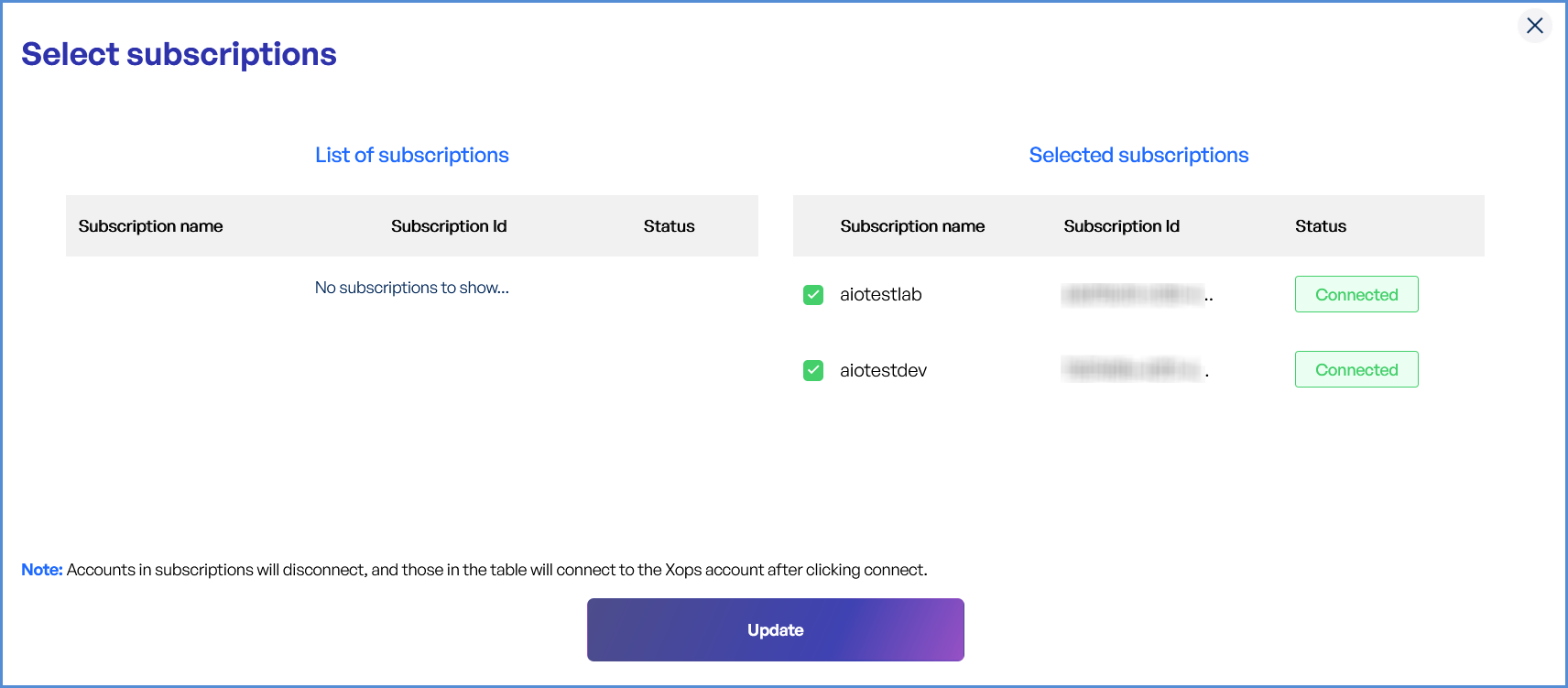
- Return to the platform and click Connect, This will redirect you to the Select Subscriptions page.
- Review the list of available subscriptions, Check the boxes next to the subscriptions you want to connect.
- Click Update to save and apply changes.
Managing Azure Subscriptions
- Access the Subscription Management Page
- Log in to the platform with your credentials.
- Navigate to the Integrations section.
- Select the connected Azure account to access the Subscription Management page.
Connecting Azure Subscriptions
- Edit the Connected Azure Account
- Locate the Azure account under Integrations.
- Click Edit to open the subscription management interface.
- View and Select Subscriptions
- List of Subscriptions: Displays all available Azure subscriptions.
- Selected Subscriptions: Highlights currently connected subscriptions.
- Select Desired Subscriptions
- Review the list of available subscriptions.
- Check the boxes next to the subscriptions you want to connect.
- Apply Changes
- Click Update to save and apply changes.
- Newly added subscriptions will be available in the platform.
Disconnecting Azure Subscriptions
- Edit the Connected Azure Account
- Go to the Integrations section and locate the Azure account.
- Click Edit to manage the account’s subscriptions.
- Deselect Subscriptions
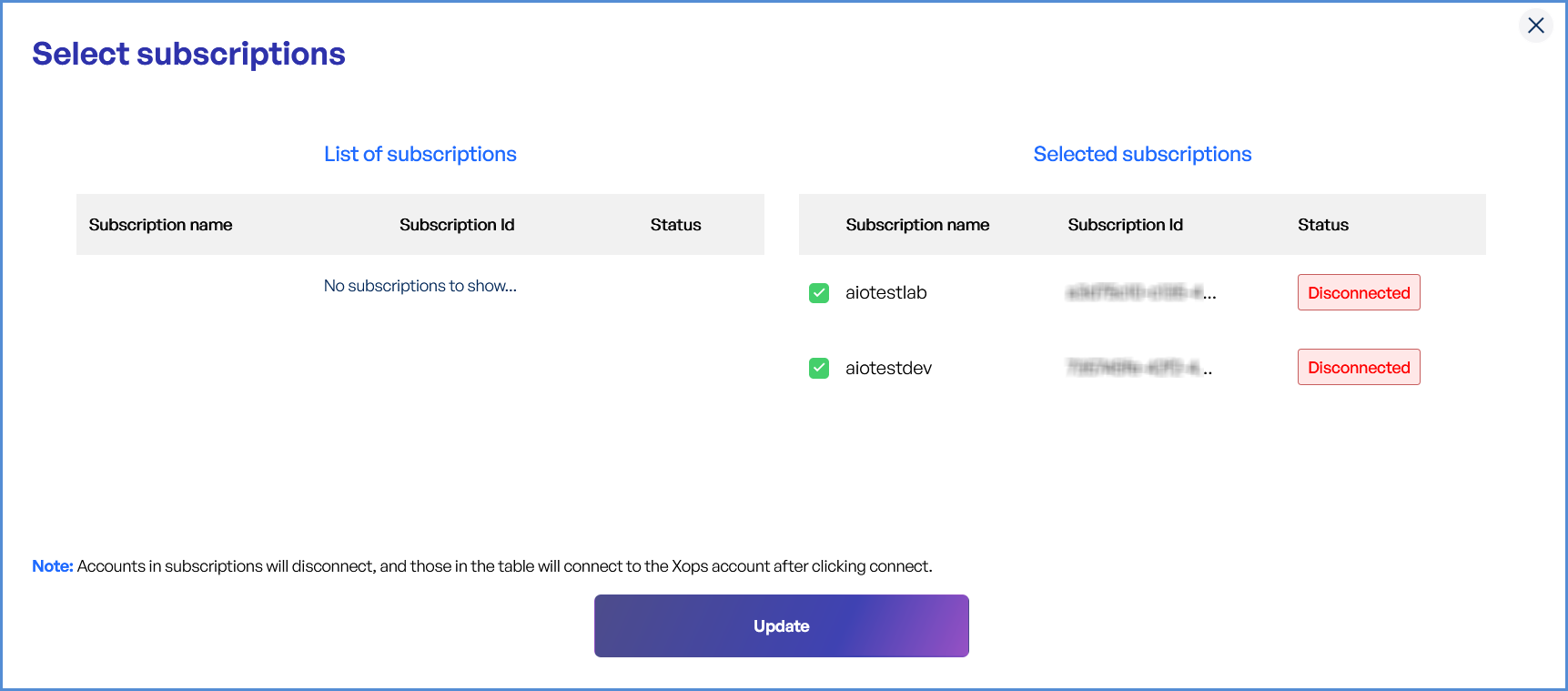
- Under Selected Subscriptions, uncheck the subscriptions you want to disconnect.
- Apply Changes
- Click Update to finalize changes.
- The deselected subscriptions will no longer be associated with your account.