
Conducting Cloud Security Assessments
Ensuring cloud security requires regular vulnerability assessments and compliance checks across various cloud environments. The SecOps module in XOps 360 enables organizations to evaluate their security posture and compliance status across AWS, Azure, and Microsoft environments including Microsoft 365 and Entra ID.
This guide outlines the steps required to initiate compliance scans and review security findings.
Cloud Security – AWS Security Assessment
-
Log in to the Platform
- Access the platform and sign in using your credentials.
- Access the platform and sign in using your credentials.
- Navigate to SecOps
-
Open the Side Navigation Bar located on the left side of the screen.
- Click SecOps to expand the available security modules.
- Select Compliance Dashboard .
-
- Select Compliance Standard
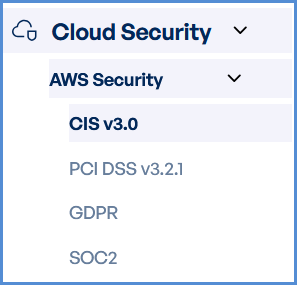
Under the Compliance Dashboard, choose one of the following AWS compliance frameworks:
-
AWS CIS v5.0 (Center for Internet Security)
-
AWS SOC2 (System and Organization Controls 2)
-
AWS GDPR (General Data Protection Regulation)
-
AWS PCI DSS (Payment Card Industry Data Security Standard)
-
- These frameworks evaluate AWS cloud configurations against industry security best practices.
- Verify AWS Account
-
Ensure that an AWS account has already been added to the platform.
-
If no account is available, integrate the AWS account before initiating the scan.
-
- Initiate the Scan
-
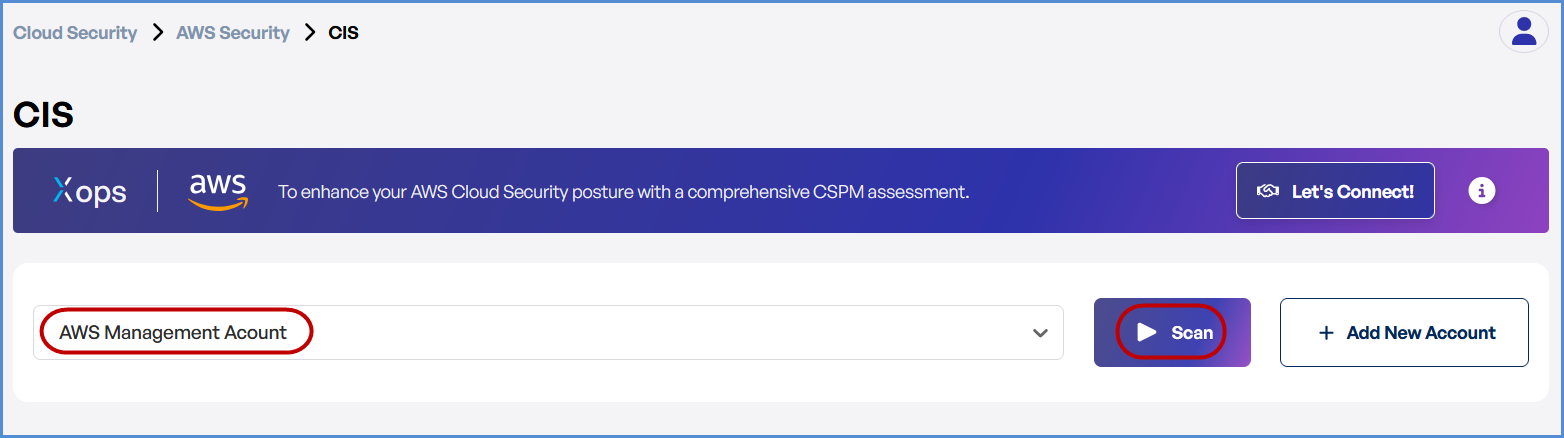
Locate the AWS account under the selected compliance framework.
-
Click Scan to initiate an automated security check.
- The system will analyze AWS configurations and security controls.
-
Monitor and Review Results
-
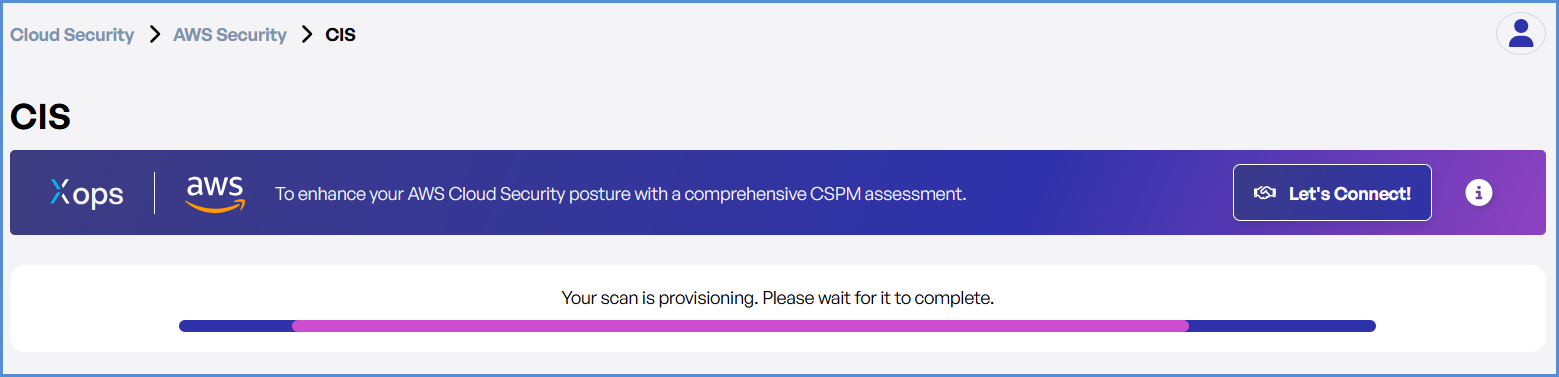
Monitor scan progress, and upon completion, a report will be generated then open it.
-
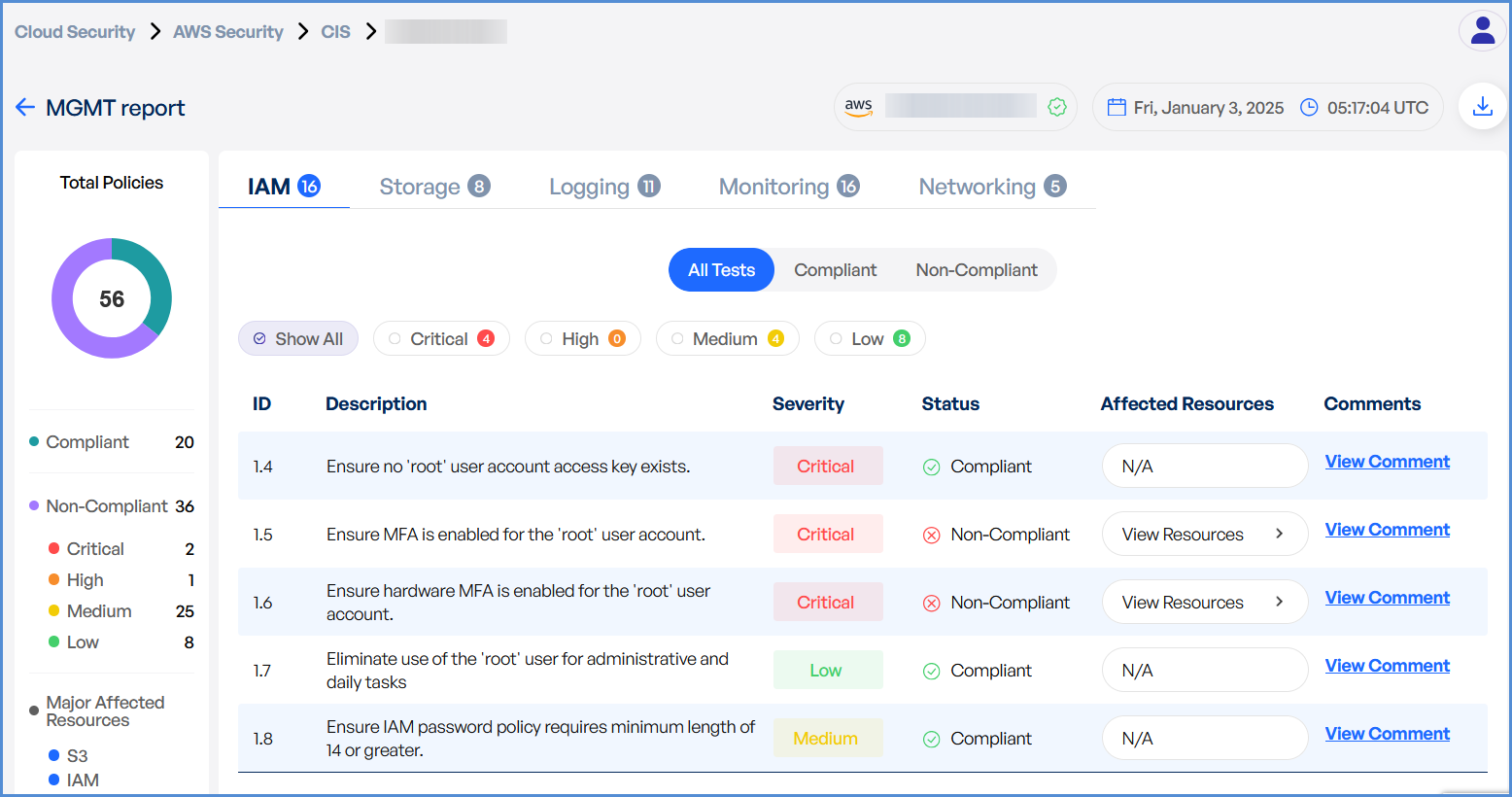
Review findings, including:
-
Compliance gaps
-
Security misconfigurations
-
Vulnerabilities
-
Cloud Security – Azure Security
-
Log in to the Platform
- Access the platform and sign in using your credentials.
- Access the platform and sign in using your credentials.
- Navigate to SecOps
-
Open the Side Navigation Bar
- Click SecOps → Compliance Dashboard.
-
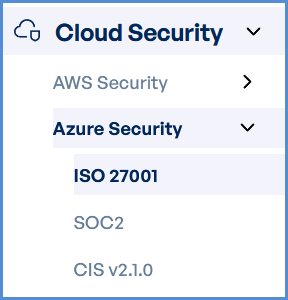
- Select Azure Compliance Standard
Choose the compliance framework used to assess Azure security posture.
-
Available frameworks include:
-
ISO 27001 (International Organization for Standardization)
-
SOC2 (System and Organization Controls 2)
-
CIS (Center for Internet Security)
-
-
These frameworks analyze Azure configurations against established security standards.
- Verify Azure Account
-
Ensure that an Azure account has already been added to the platform.
-
If no account is available, connect the Azure account before running the scan.
-
- Initiate the Scan
-
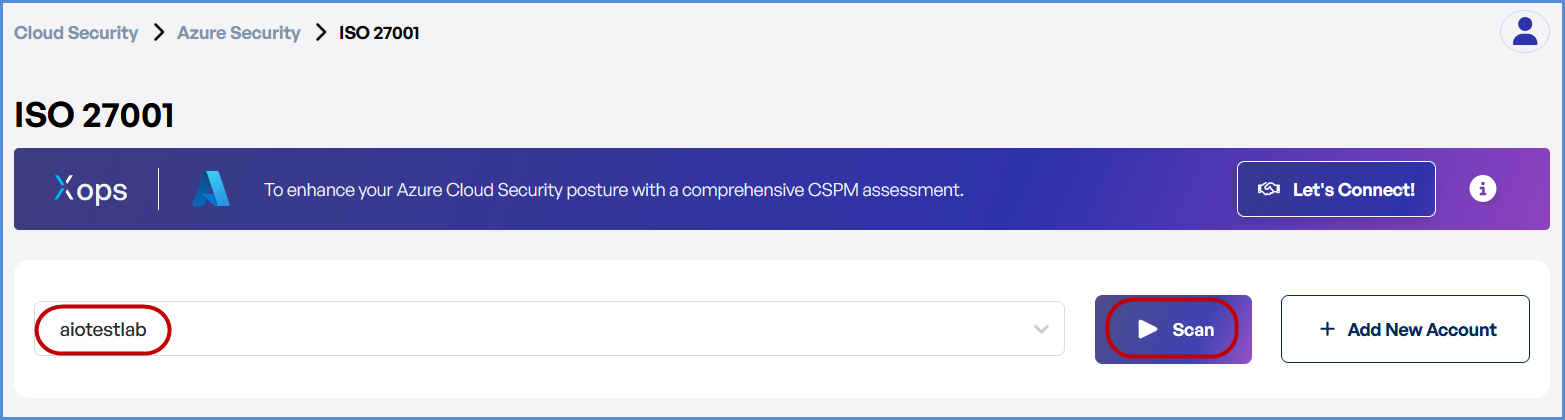
Locate the Azure subscription listed under the selected compliance framework.
-
Click Scan to initiate the Azure security assessment.
-
Monitor and Review Results
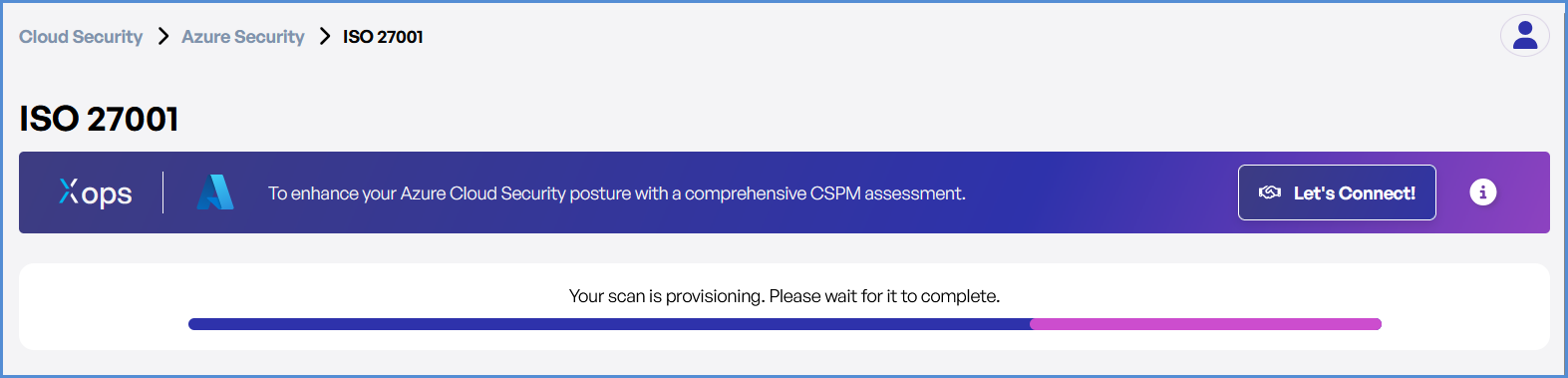
- Monitor scan progress, and upon completion, a report will be generated then open it.
-
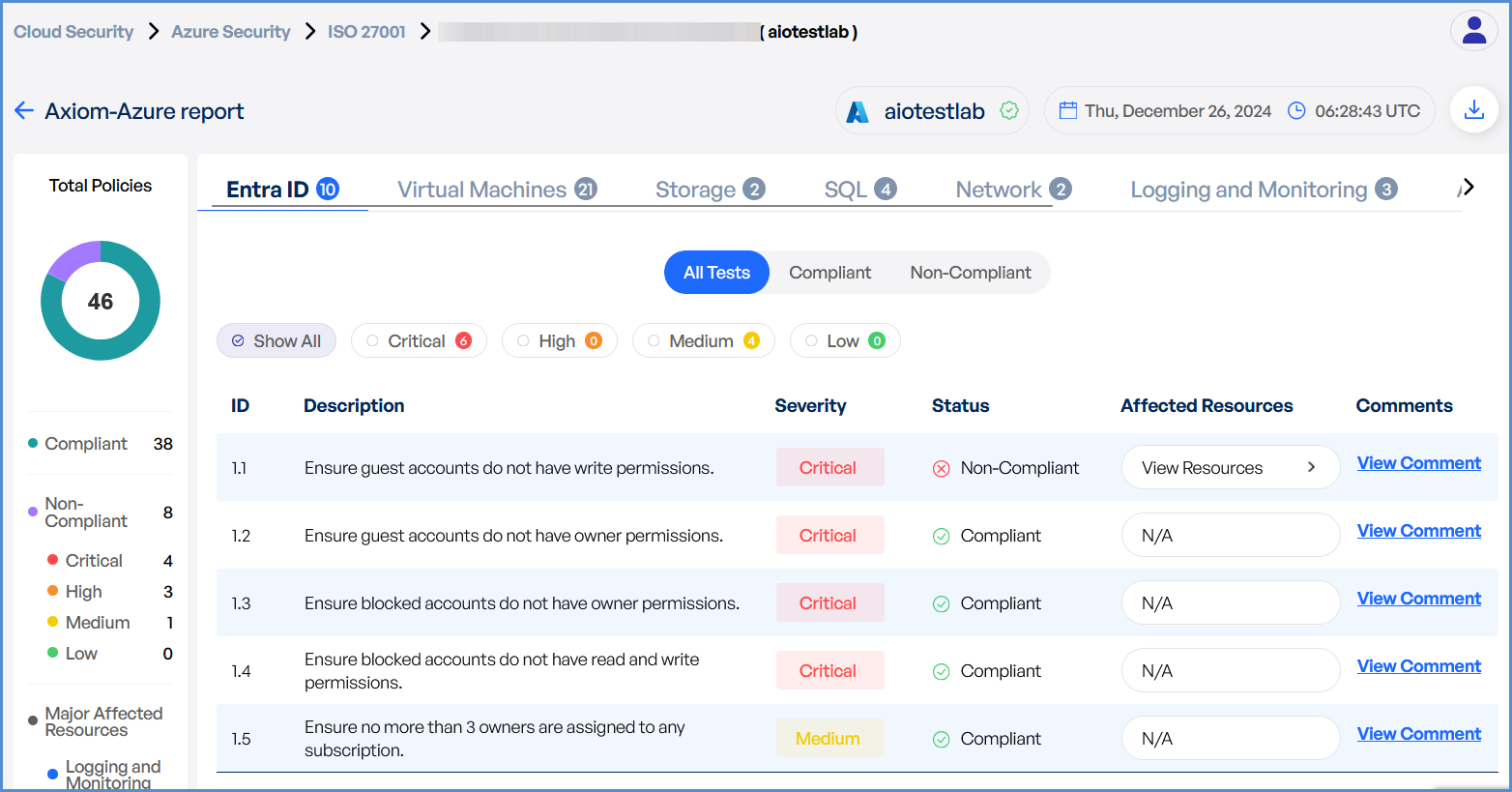
Analyze scan results to detect:
-
Compliance gaps
-
Security misconfigurations
-
Vulnerabilities
-
Cloud Security – Microsoft Security (M365 & Entra ID)
-
Log in to the Platform
- Access the platform and sign in using your credentials.
- Access the platform and sign in using your credentials.
- Navigate to SecOps
-
Open the Side Navigation Bar
- Click SecOps → Compliance Dashboard.
-
Microsoft Entra ID Security Assessment
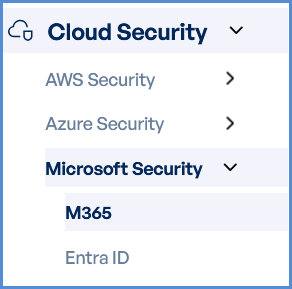
- Select Entra ID
- Under the Compliance Dashboard, click Entra ID.
- This feature evaluates identity security configurations within Microsoft Entra ID.
- Verify Microsoft Account
-
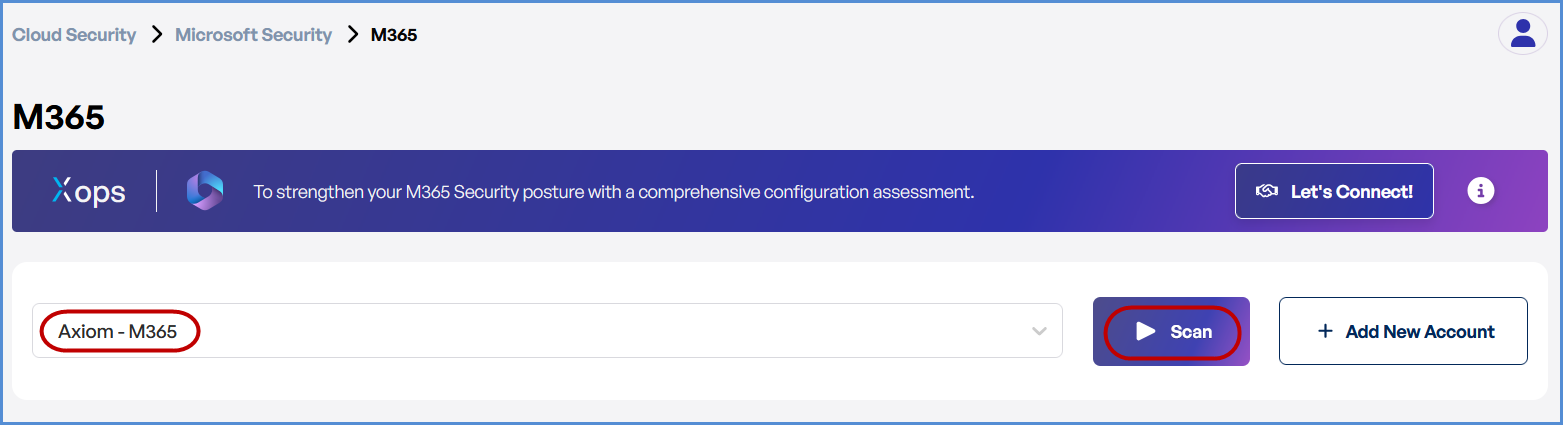
Ensure that an Microsoft account has already been added to the platform.
-
If no account is available, click on + Add New Account..
-
- Choose the desired Scan Type
-
Select the security scan based on the platform:
-
M365 (Microsoft 365) – Security and compliance assessment.
-
Entra ID (Identity Governance and Administration) – Identity security analysis.
-
-
- Initiate the Scan
-
Locate the Microsoft account under the relevant security category.
-
Click Scan to start the assessment.
-
Monitor and Review Results
-
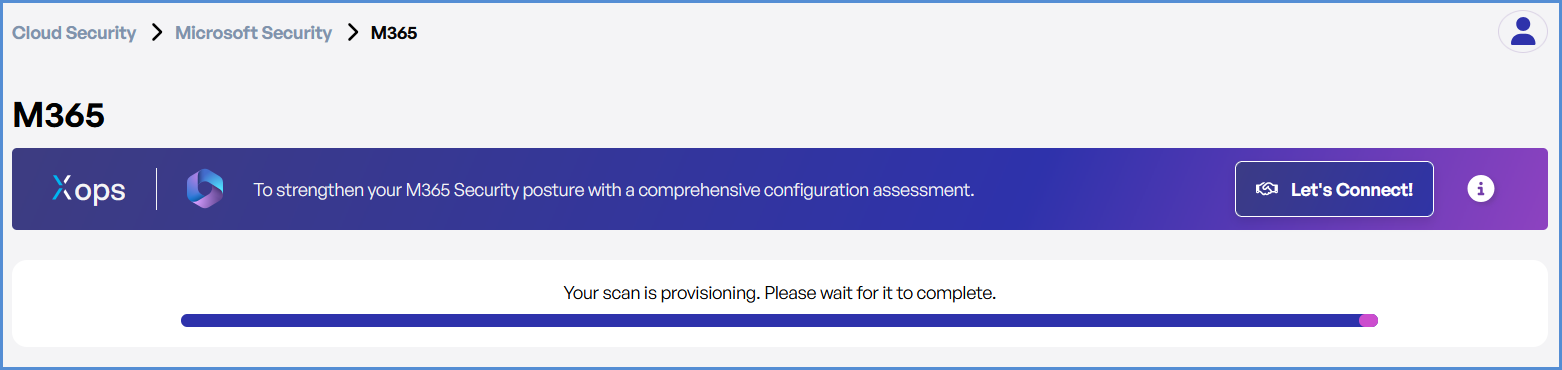
Track scan progress in the Cloud Security Dashboard.
-
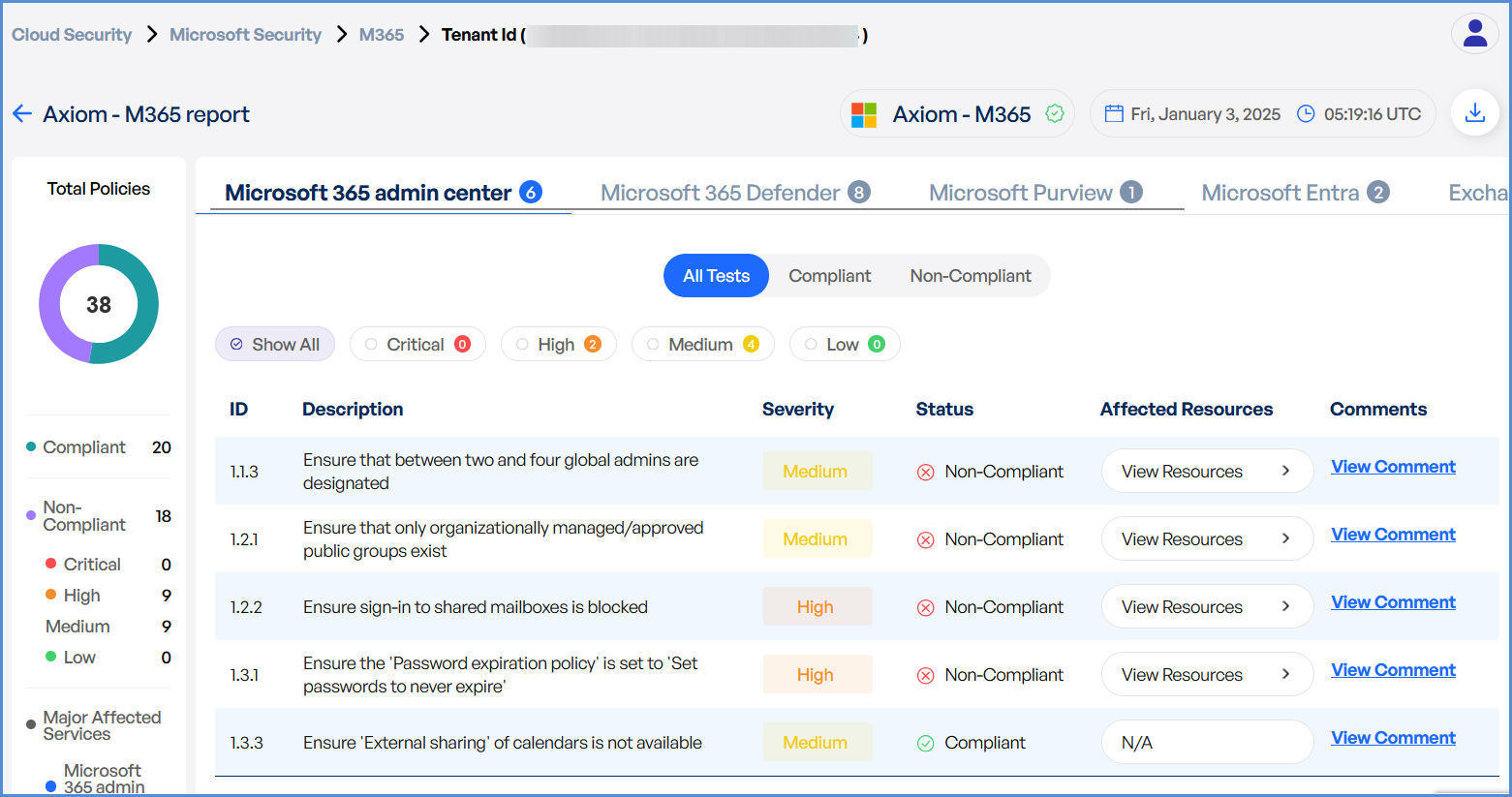
Review scan findings to identify:
-
Security gaps
-
Misconfigurations
-
Vulnerabilities
-
Note:
- For accessing historic reports or addressing scan failures, refer to the Report History Page for further details and View error.