Managing Subscriptions
Subscription Configuration
Directions for managing subscription details, including upgrades, downgrades, and cancellations.
- Log in to the Platform
- Access the platform and sign in using your credentials.
- Access the Profile Page
- Locate the Profile icon or menu option in the top-right corner of the interface.
- Hover on it to open the profile settings, to open a drop down menu.
- Access the Subscription Menu
- From the list of options, select Subscription.
- Redirect to the Subscription Page
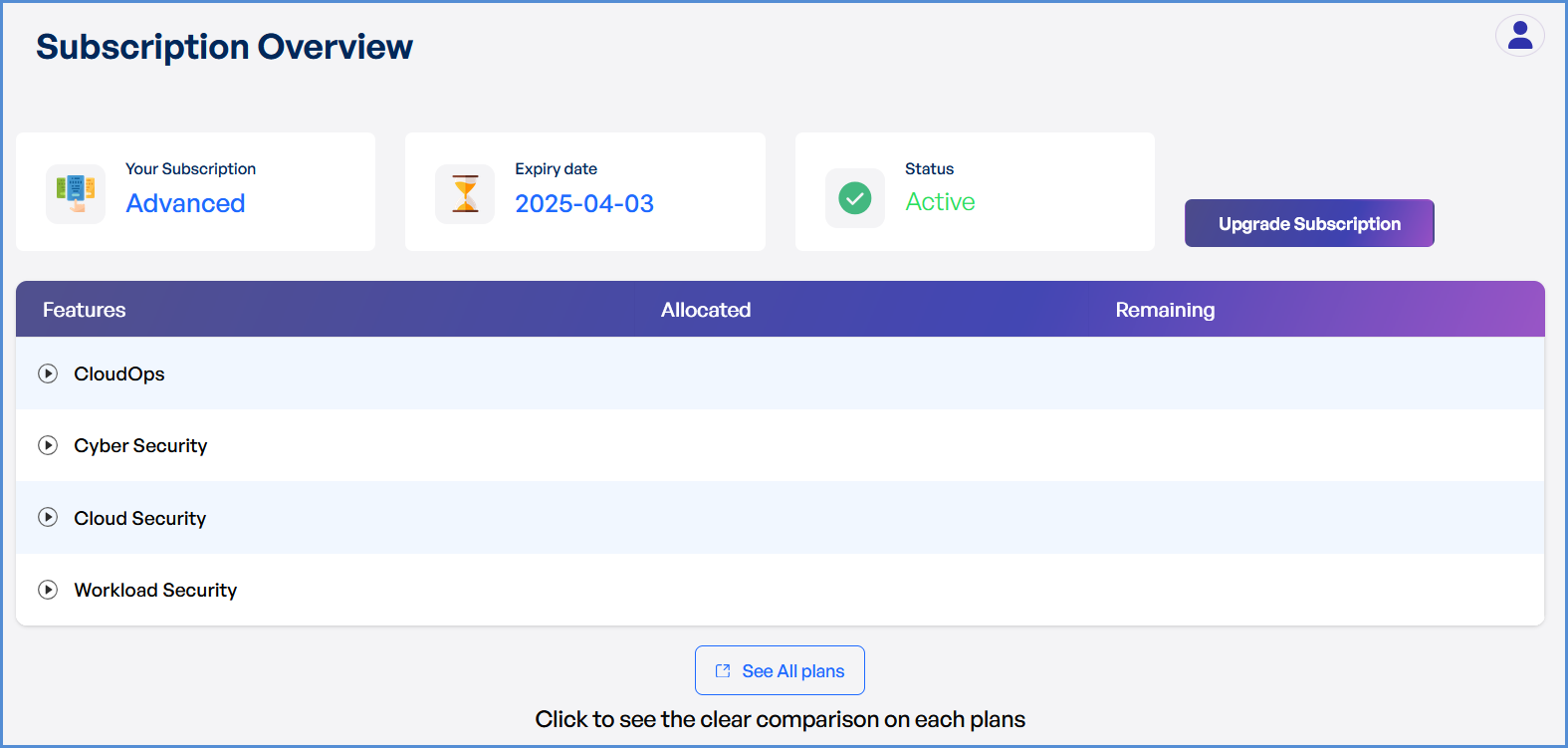
- After selecting Subscription, the portal will automatically redirect you to the Subscription page where you can view and manage your subscription details.
- After selecting Subscription, the portal will automatically redirect you to the Subscription page where you can view and manage your subscription details.
Upgrade subscription
- Currently not supporting downgrading or canceling subscription plans. Users can only upgrade their subscription.
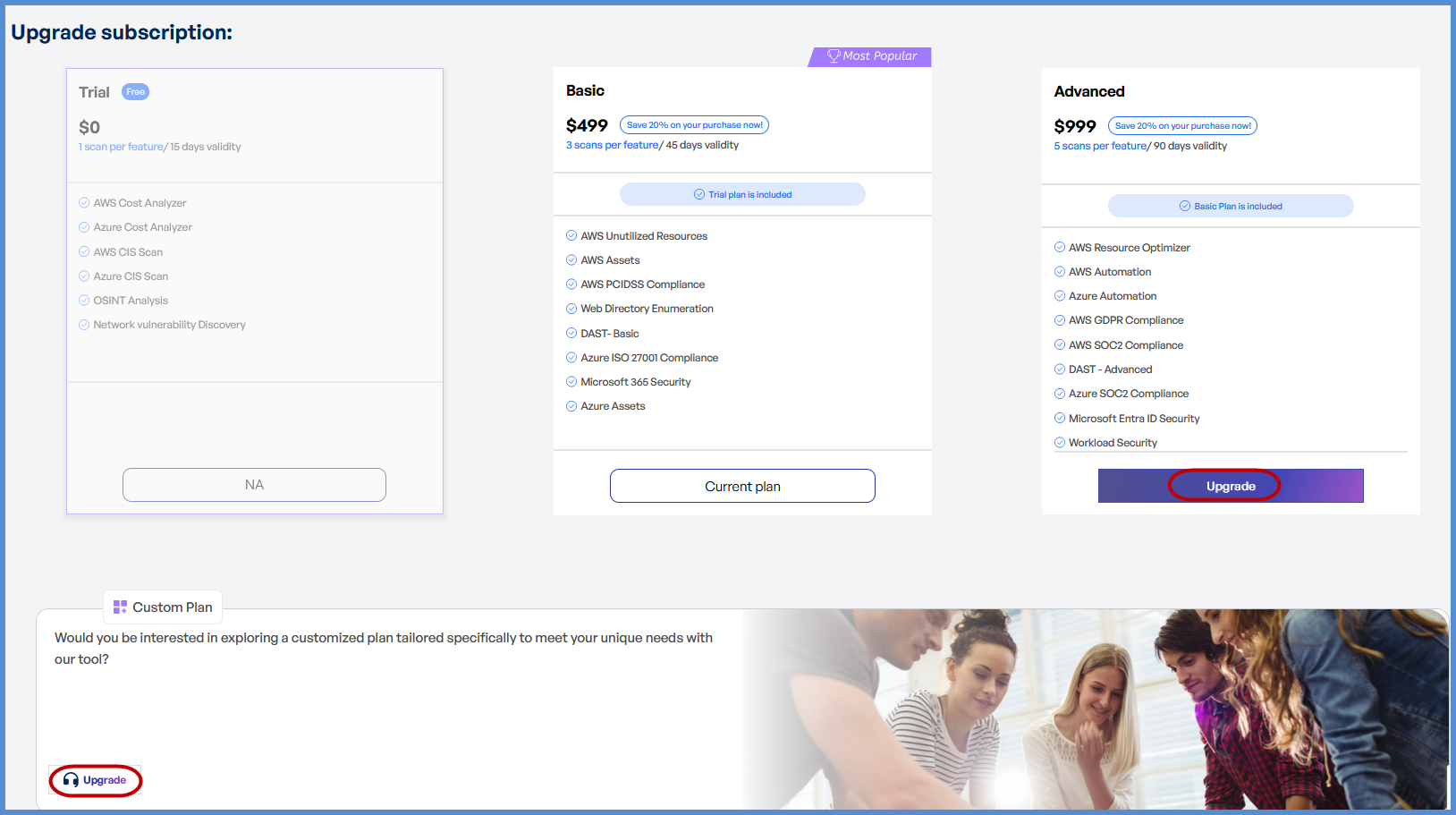
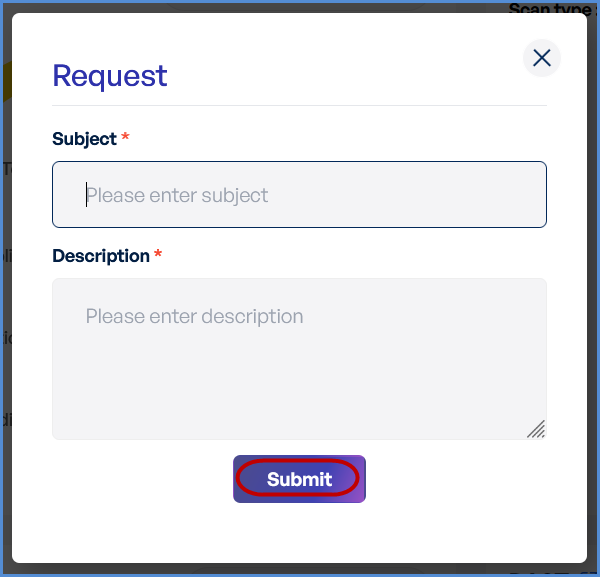
- Subscription upgrades cannot be processed directly through the portal. To upgrade your plan, click on Upgrade as shown in the image above. You will be prompted to submit a request by clicking the designated request form. Upon selection, a pop-up form will appear, requiring you to provide the following details:
- Subject: Specify the request type (e.g., "Upgrade to Advanced Plan").
- Description: Provide details about your upgrade request.
- Once submitted, our team will review your request and process the upgrade accordingly.