
Executing Scans in CloudOps
ExecutingRunning Scans in Cloud Operations
- Log in to the Platform
- Access the platform and sign in using your credentials.
- Navigate to CloudOps
-
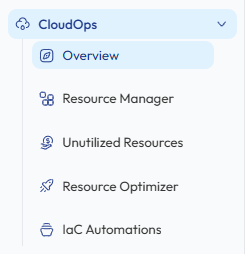
Locate the Side Navigation Bar on the left-hand side of the screen.
-
Click on the CloudOps
tabmodule toaccessexpanditsthefeatures.available options.
-
- Verify
AWSCloud Account-
Ensure that an AWS or Azure account has already been
addedconnected to the platform. -
If no account is available,
clickaddona cloud account through the+ AddCloud Account Integration process.before initiating a scan.
-
- Select a Scan Type
-
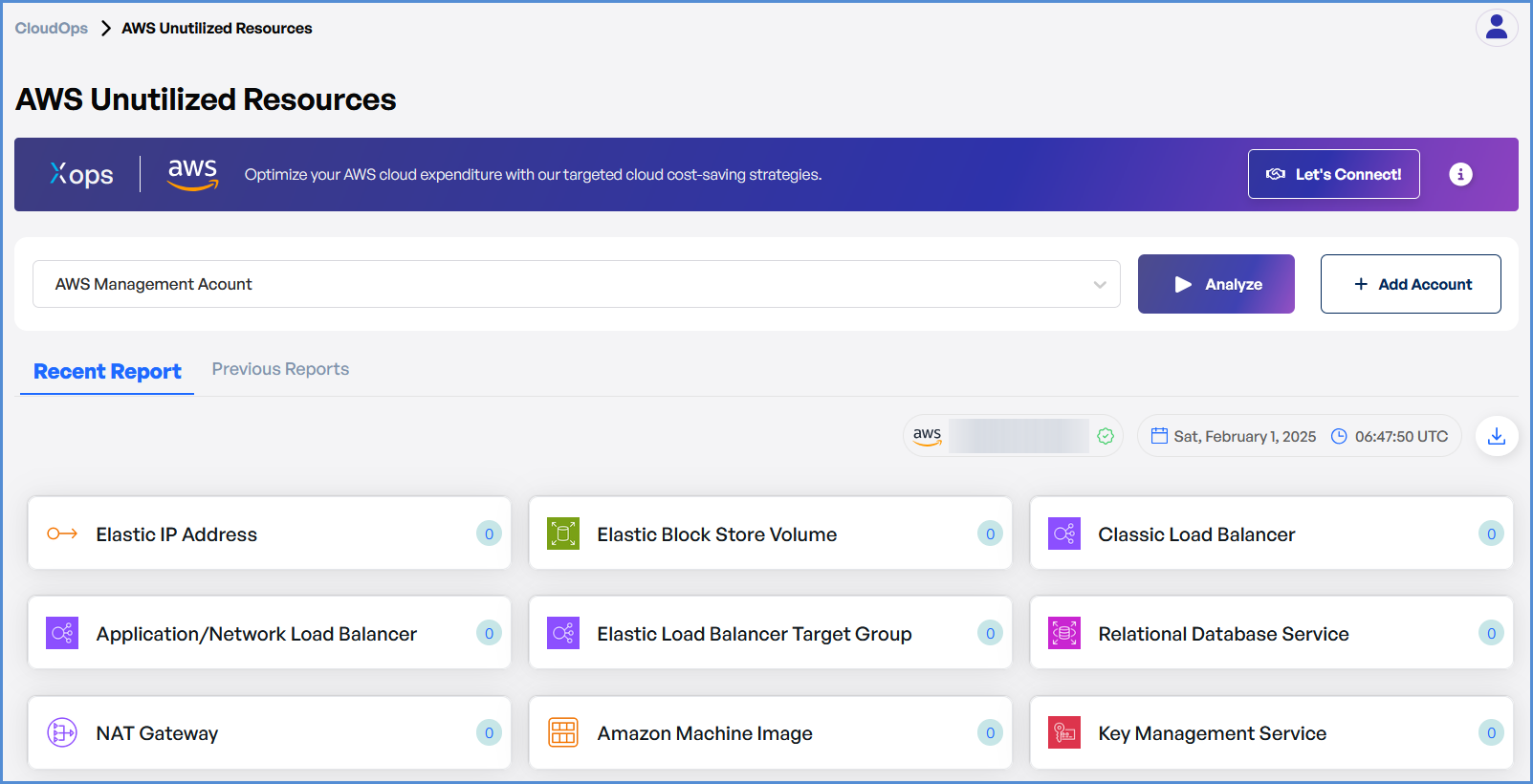
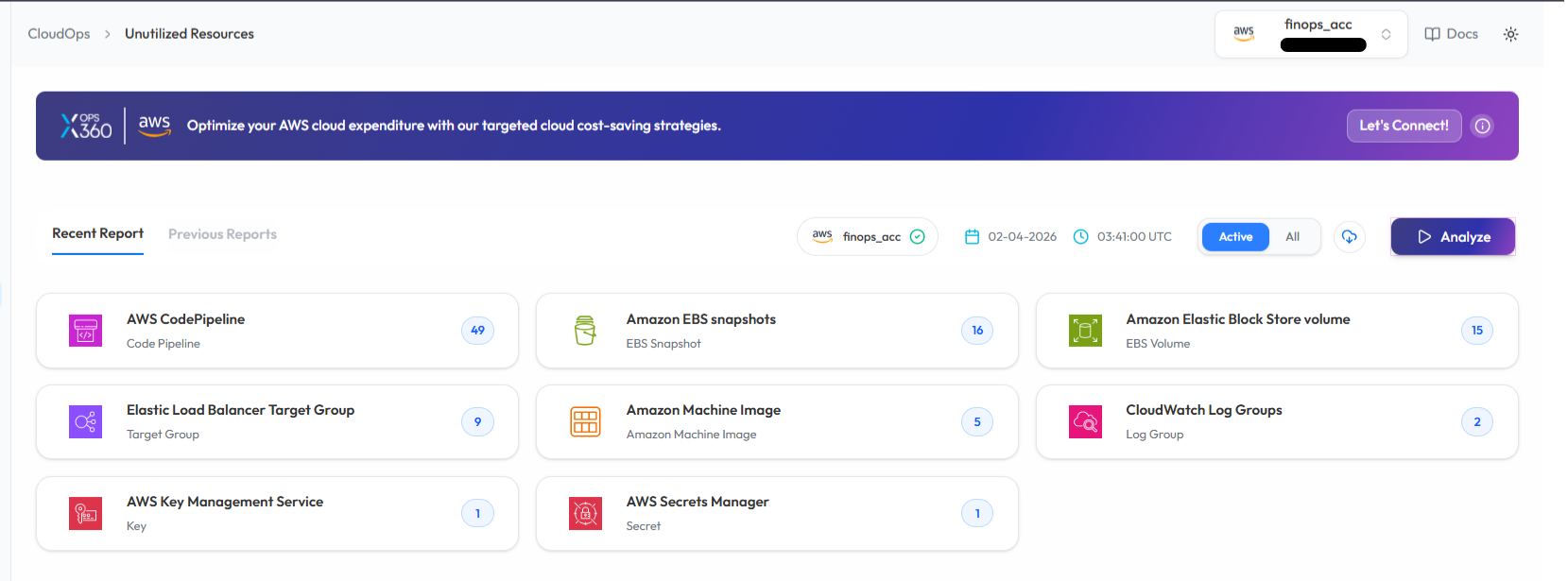
OnFrom the CloudOpspage,module,choose fromselect thefollowingscanoptions:you want to perform.-
AWSUnutilized Resources - Detect unused AWS resources. -
AWSResource Optimizer - Identify optimization opportunities across AWS resources. - Azure WAR (Well-Architected Review) – Evaluate Azure cloud architecture against Microsoft best practices.
-
-
- Initiate the Scan
-
Select the
desired AWScloud account from the available account list. -
Click Analyze or Scan to initiate the scan for the selected account.
- The platform will begin analyzing the selected cloud resources.
-

- Monitor and Review Results
MonitorThe scanprogress, and upon completion, a reportwillbestartgeneratedprocessingthentheopenselectedit.cloud

Once the scan is complete:
-
-
OnceAthe scan is complete, detailed resultsreport will beavailablegeneratedfor review.automatically. -
UseResultsthewillresultsdisplaytoidentifiedidentifyoptimization opportunitiesandorunutilizedunusedresources.resources. - Users can review detailed findings directly within the dashboard.
-
Note:
-
To receive recommendations for optimizing your resources in Resource Optimizer, kindly ensure that the AWS Compute Optimizer service is enabled in the AWS account linked with the Xops 360 portal.
Running a Scan in AssetsResource Manager (AWS and Azure)Assets)
- Log in to the Platform
-
- Access the platform and sign in using your credentials.
-
- Navigate to
AWS/AzureResourceAssetsManager
-
From the Side Navigation Bar,
selectclick :
CloudOps → Resource Manager
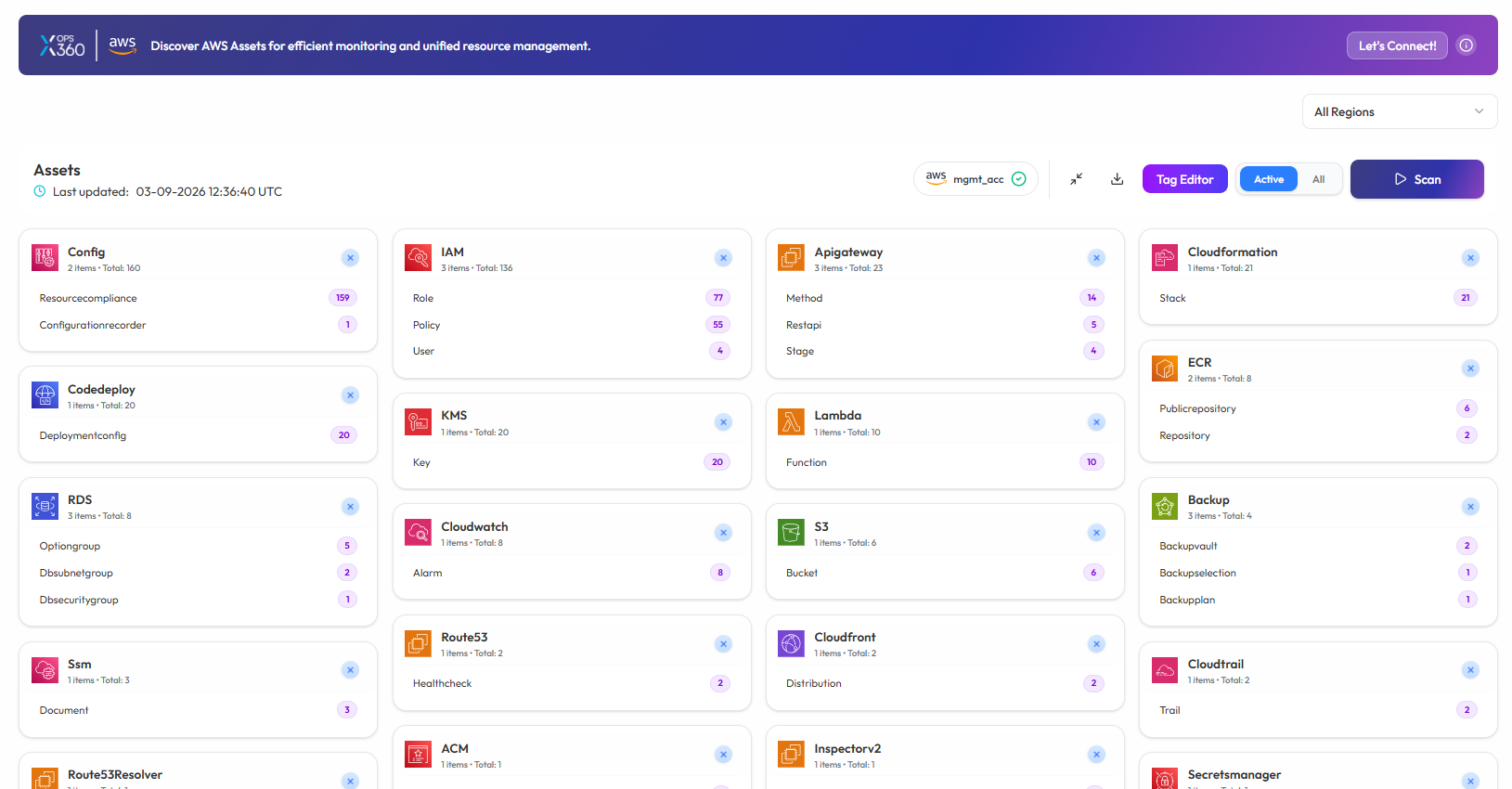
This page provides aAWScomprehensiveAssetsinventoryorAzure Assets, based on theof cloudproviderassetsyouacrosswantmultipleto scan.services.
-
- Verify AWS Account
-
Ensure that an AWS account or Azure account has already been added to the platform.
-
If no account is available,
clickaddonthe+accountAddbeforeNewinitiatingAccount.
the scan.
-
- Run the Scan
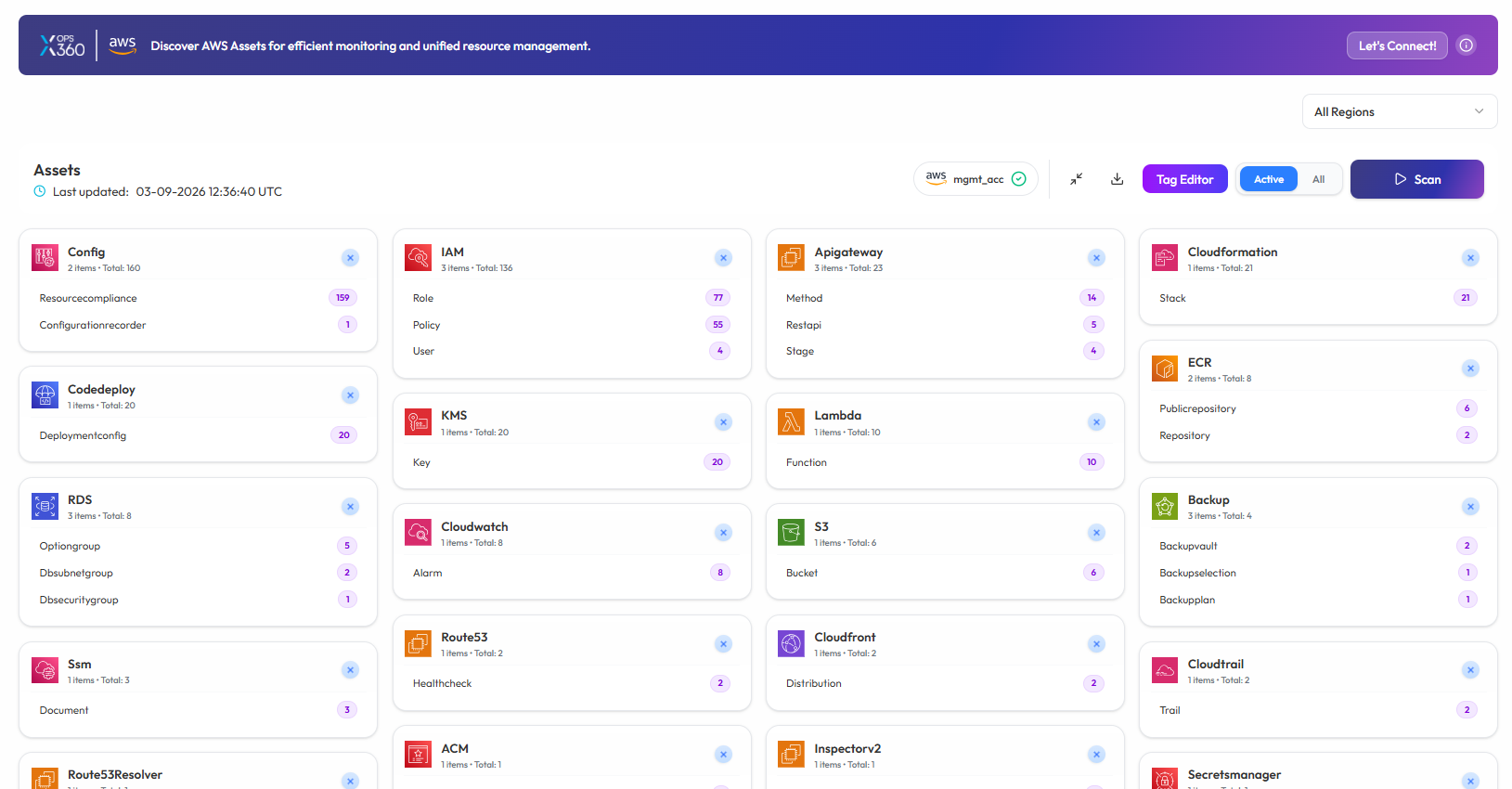
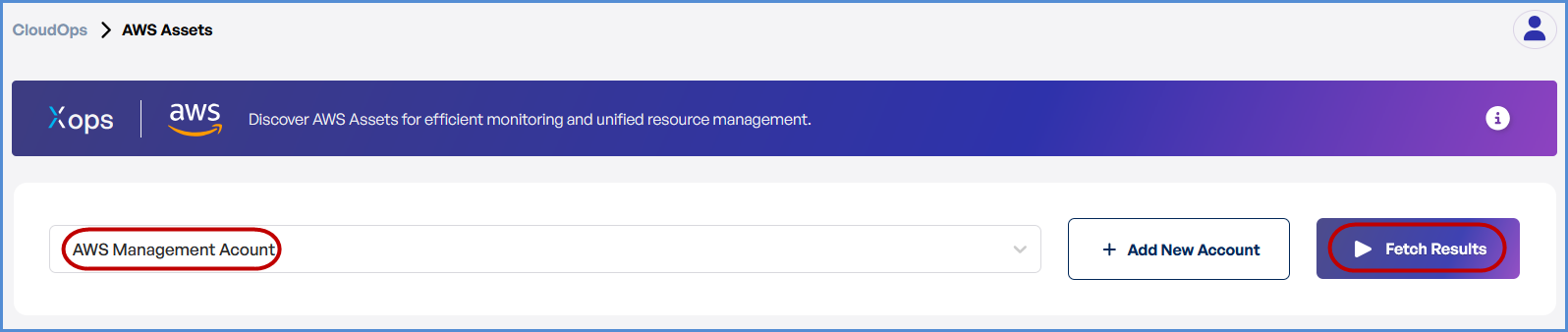
On the Resource Manager (Assets) page
-
LocateSelect the desired cloud accountin theAssetssection.. -
Click
Fetch ResultsScan toinitiatefetch thescanlatestforcloud asset information. -
The platform will begin retrieving resources from the selected cloud account.
-
-
- Monitor and Review Results
-
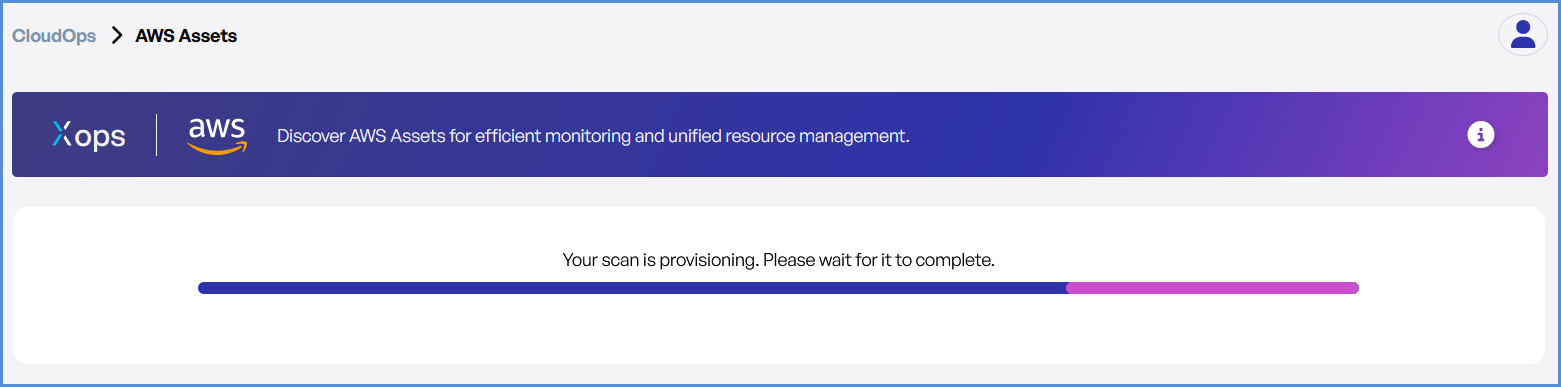
The
scansystem willstart fetching results forfetch theselectedcloudaccount.resources and update the Assets Dashboard.
-
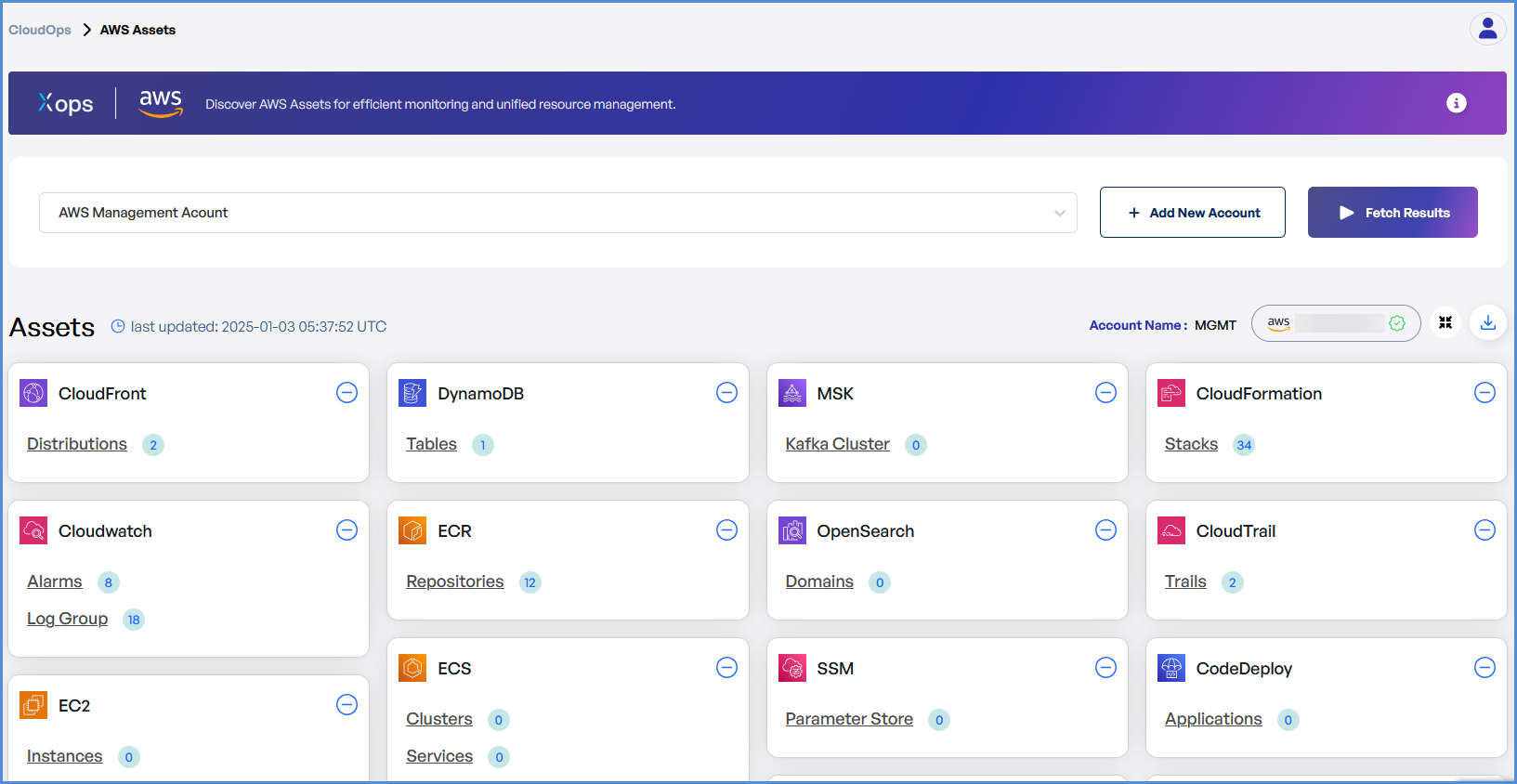
Once
completed,completeddetailed:results-
All discovered cloud resources will be
displayeddisplayed.on -
Resources will be categorized by service (EC2, ECS, IAM, S3, Lambda, etc.).
-
Users can review the
AssetsinventoryDashboardtoforbetterreview.manage and monitor their cloud infrastructure.
-
Note:
- For accessing historic reports or addressing scan failures, refer to the Report History Page for further details and View error.