
Executing Scans in CloudOps
Running Scans in Cloud Operations
- Log in to the Platform
- Access the platform and sign in using your credentials.
- Navigate to CloudOps
-
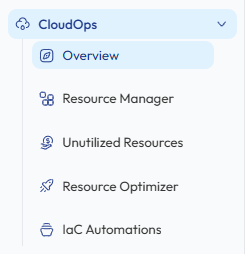
Locate the Side Navigation Bar on the left-hand side of the screen.
-
Click on the CloudOps module to expand the available options.
-
- Verify Cloud Account
-
Ensure that an AWS or Azure account has already been connected to the platform.
-
If no account is available, add a cloud account through the Cloud Account Integration process before initiating a scan.
-
- Select a Scan Type
-
From the CloudOps module, select the scan you want to perform.
-
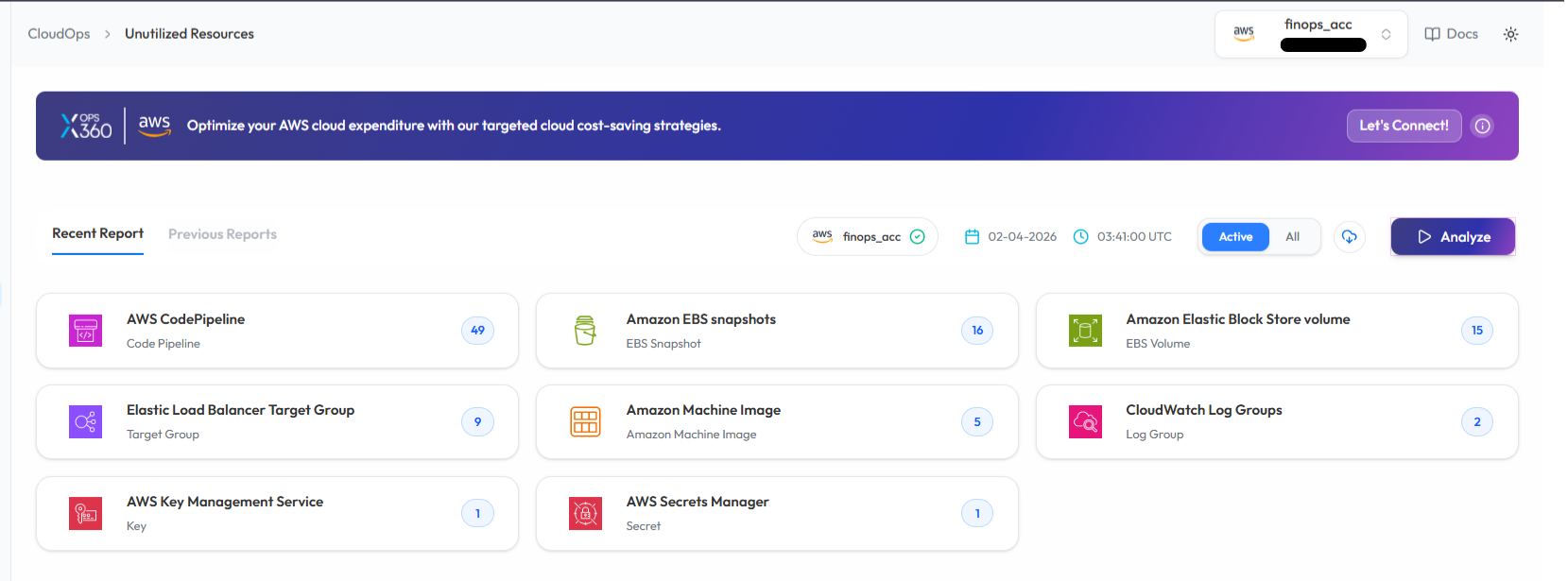
Unutilized Resources - Detect unused AWS resources.
-
Resource Optimizer - Identify optimization opportunities across AWS resources.
- Azure WAR (Well-Architected Review) – Evaluate Azure cloud architecture against Microsoft best practices.
-
-
- Initiate the Scan
-
Select the cloud account from the available account list.
-
Click Analyze or Scan to initiate the scan for the selected account.
- The platform will begin analyzing the selected cloud resources.
-

- Monitor and Review Results
The scan will start processing the selected cloud account.

Once the scan is complete:
-
-
A report will be generated automatically.
-
Results will display identified optimization opportunities or unused resources.
- Users can review detailed findings directly within the dashboard.
-
These results help identify opportunities to reduce cloud costs and improve infrastructure efficiency.
Note:
-
To receive recommendations for optimizing your resources in Resource Optimizer, kindly ensure that the AWS Compute Optimizer service is enabled in the AWS account linked with the Xops 360 portal.
Running a Scan in Resource Manager (Assets)
- Log in to the Platform
-
- Access the platform and sign in using your credentials.
-
- Navigate to Resource Manager
-
From the Side Navigation Bar, click :
CloudOps → Resource Manager
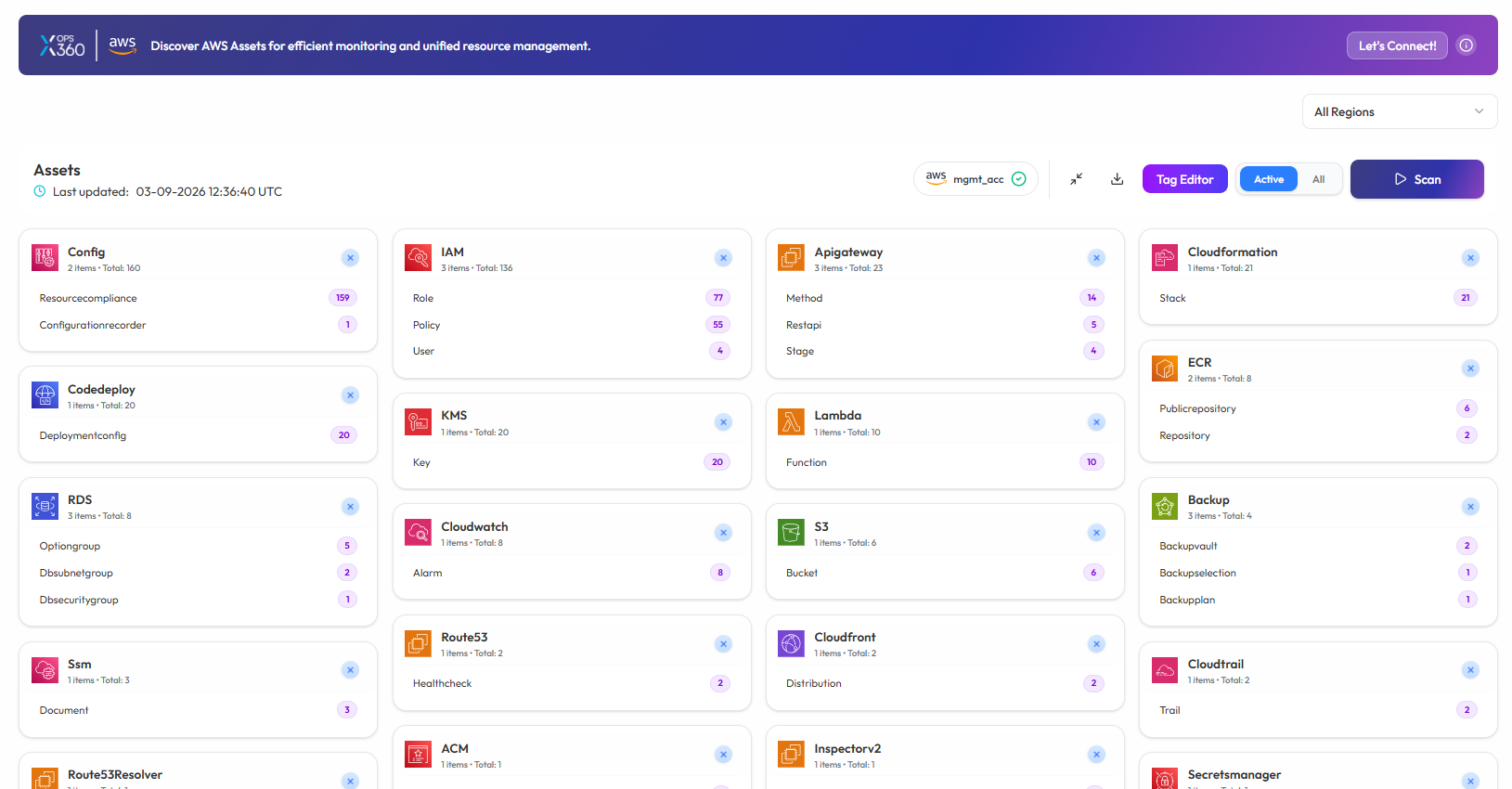
This page provides a comprehensive inventory of cloud assets across multiple services.
-
- Verify AWS Account
-
Ensure that an AWS account or Azure account has already been added to the platform.
-
If no account is available, add the account before initiating the scan.
-
- Run the Scan
On the Resource Manager (Assets) page
-
Select the desired cloud account.
-
Click Scan to fetch the latest cloud asset information.
-
The platform will begin retrieving resources from the selected cloud account.
-
-
- Monitor and Review Results
-
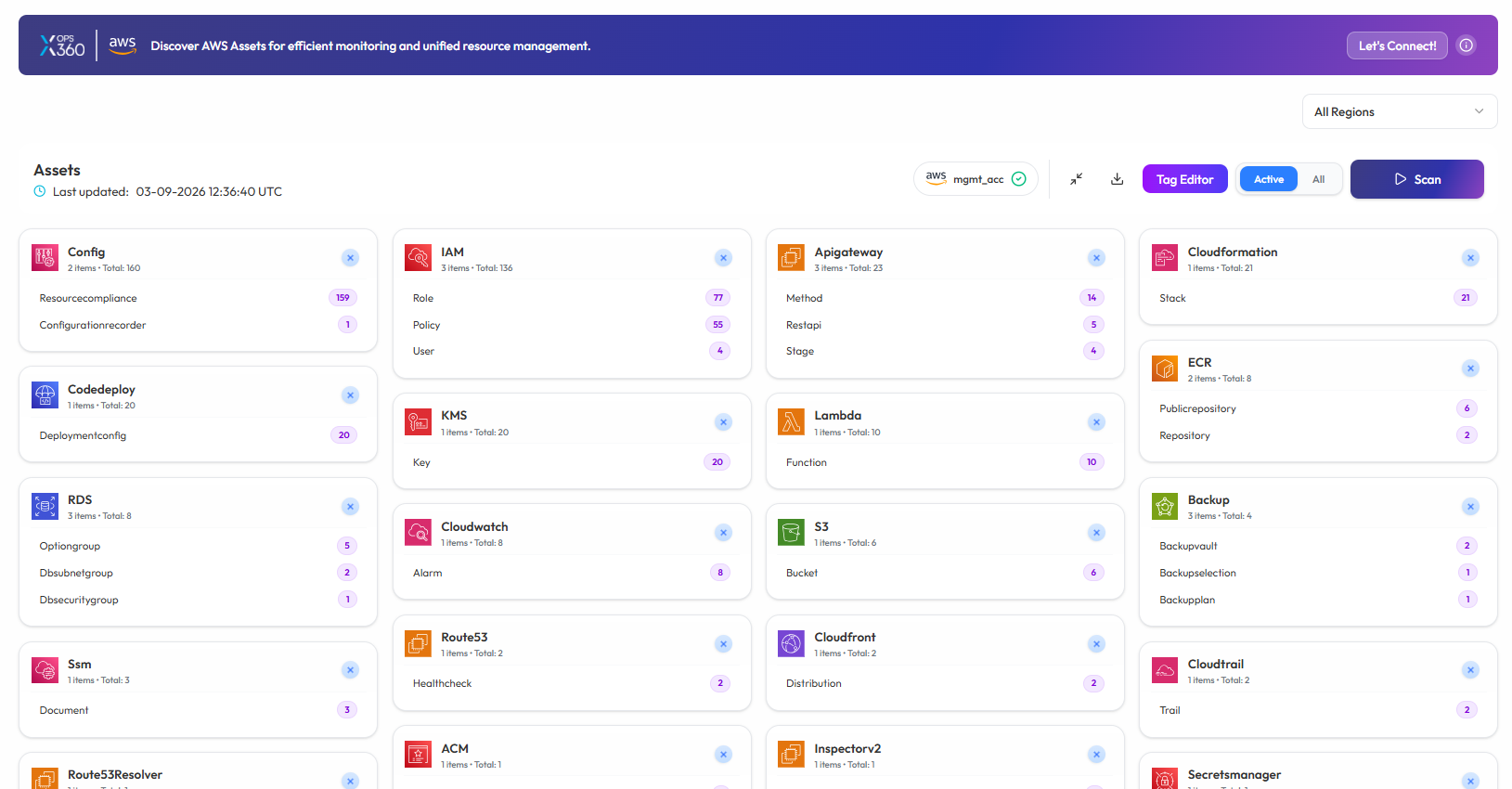
The system will fetch the cloud resources and update the Assets Dashboard.
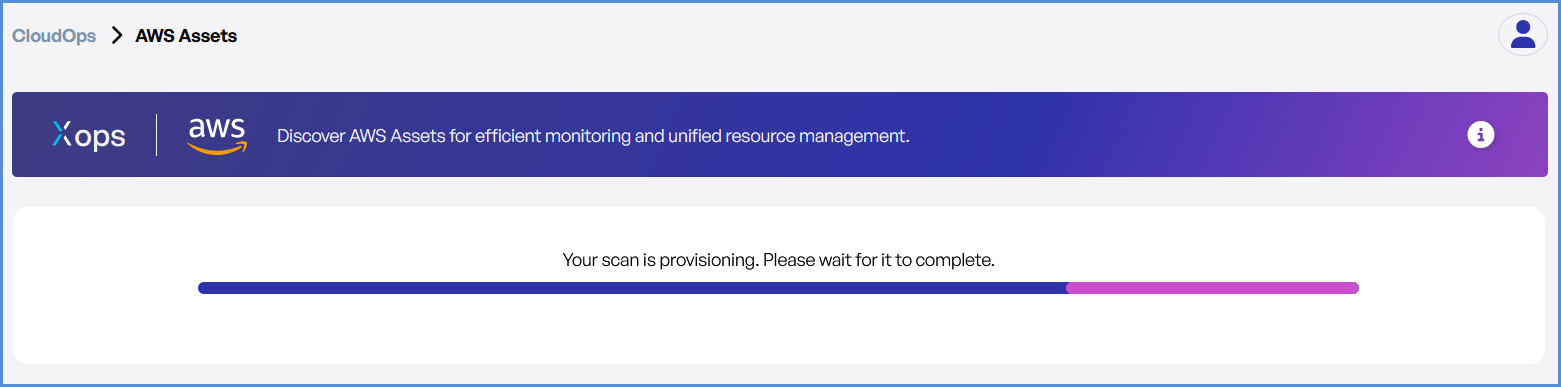
-
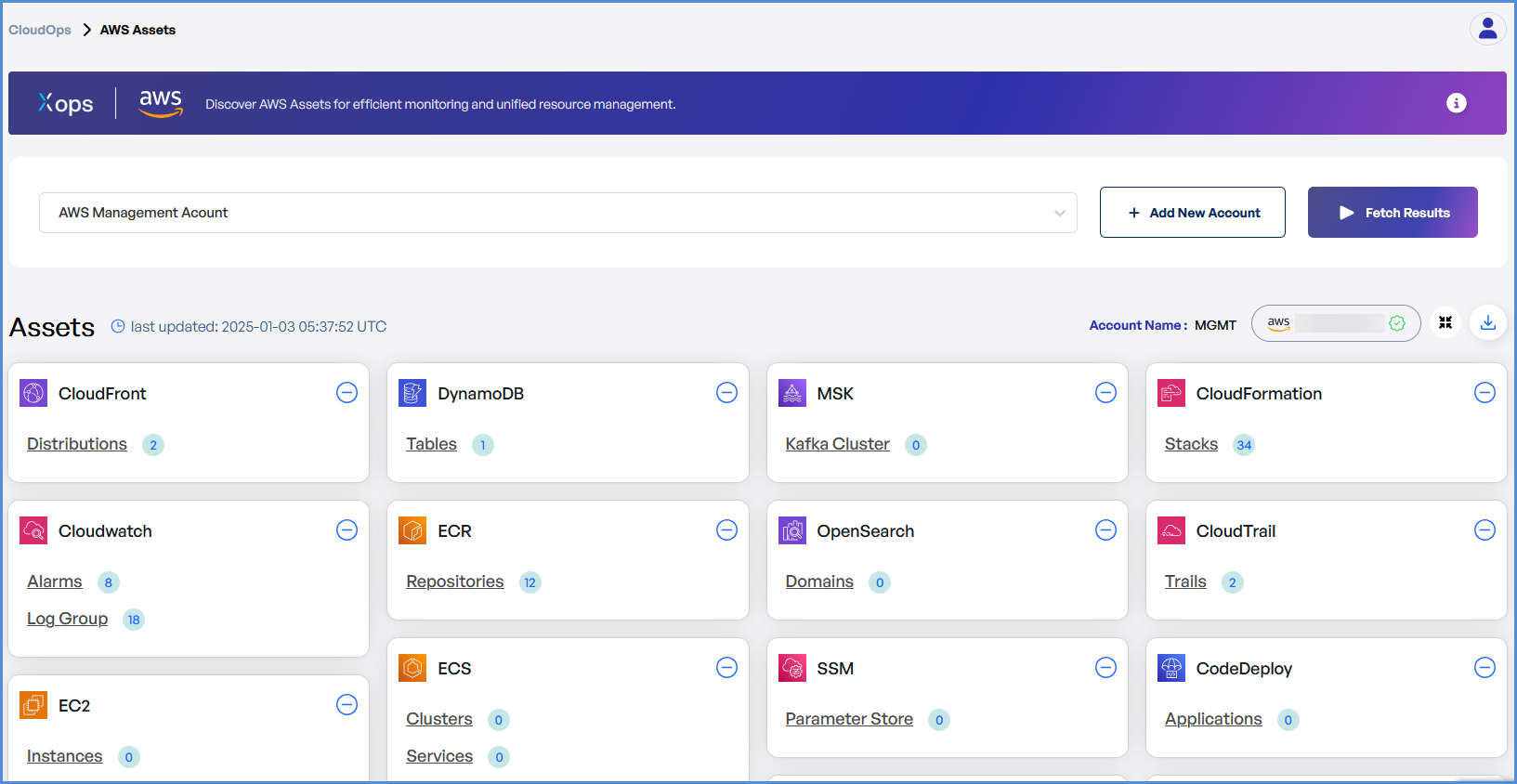
Once completed :
-
All discovered cloud resources will be displayed.
-
Resources will be categorized by service (EC2, ECS, IAM, S3, Lambda, etc.).
-
Users can review the inventory to better manage and monitor their cloud infrastructure.
-
Note:
- For accessing historic reports or addressing scan failures, refer to the Report History Page for further details and View error.