
Executing Scans in CloudOps
Running Scans in Cloud Operations
- Log in to the Platform
- Access the platform and sign in using your credentials.
- Navigate to CloudOps
-
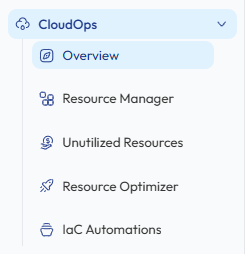
Locate the Side Navigation Bar on the left-hand side of the screen.
-
Click on the CloudOps module to expand the available options.
-
- Verify Cloud Account
-
Ensure that an AWS or Azure account has already been connected to the platform.
-
If no account is available, add a cloud account through the Cloud Account Integration process before initiating a scan.
-
- Select a Scan Type
-
From the CloudOps module, select the scan you want to perform.
-
Resource Manager - Provides a centralized inventory of cloud assets across AWS and Azure services. It allows users to fetch and view infrastructure resources such as compute, networking, storage, and identity services to monitor and manage cloud infrastructure efficiently.
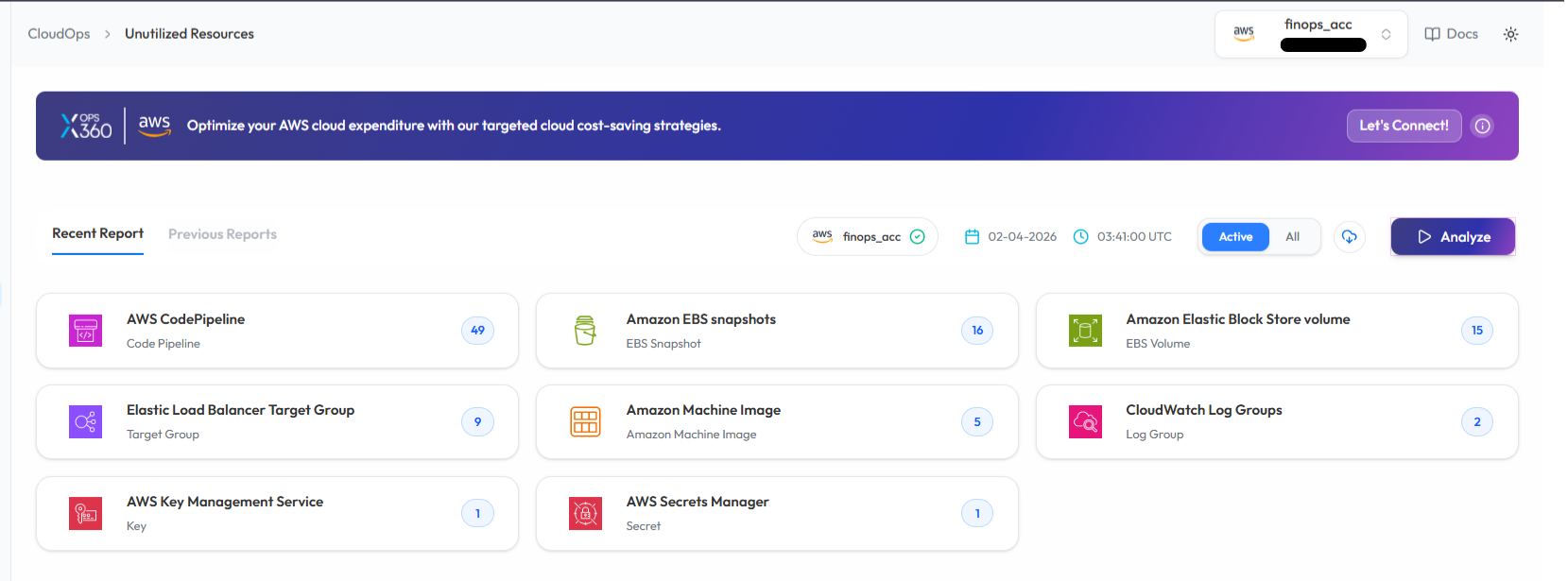
- Unutilized Resources - Detect unused AWS resources.
-
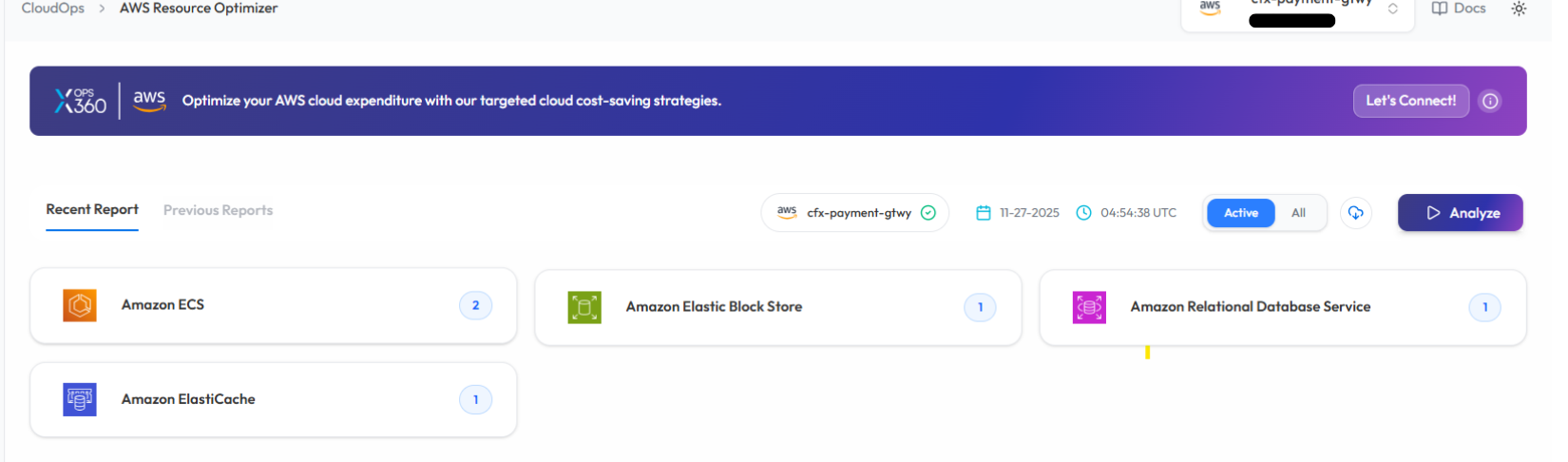
Resource Optimizer - Identify optimization opportunities across AWS resources.
- Azure WAR (Well-Architected Review) – Evaluate Azure cloud architecture against Microsoft best practices.
-
-
- Initiate the Scan
-
Select the cloud account from the available account list.
-
Click Analyze or Scan to initiate the scan for the selected account.
- The platform will begin analyzing the selected cloud resources.
-

- Monitor and Review Results
The scan will start processing the selected cloud account.

Once the scan is complete:
-
-
A report will be generated automatically.
-
Results will display identified optimization opportunities or unused resources.
- Users can review detailed findings directly within the dashboard.
-
These results help identify opportunities to reduce cloud costs and improve infrastructure efficiency.
Note:
-
To receive recommendations for optimizing your resources in Resource Optimizer, kindly ensure that the AWS Compute Optimizer service is enabled in the AWS account linked with the Xops 360 portal.
Running a Scan in Resource Manager (Assets)
- Log in to the Platform
-
- Access the platform and sign in using your credentials.
-
- Navigate to Resource Manager
-
From the Side Navigation Bar, click :
CloudOps → Resource Manager
This page provides a comprehensive inventory of cloud assets across multiple services.
-
- Verify AWS or Azure Account
-
Ensure that an AWS account or Azure account has already been added to the platform.
-
If no account is available, add the account before initiating the scan.
-
- Run the Scan
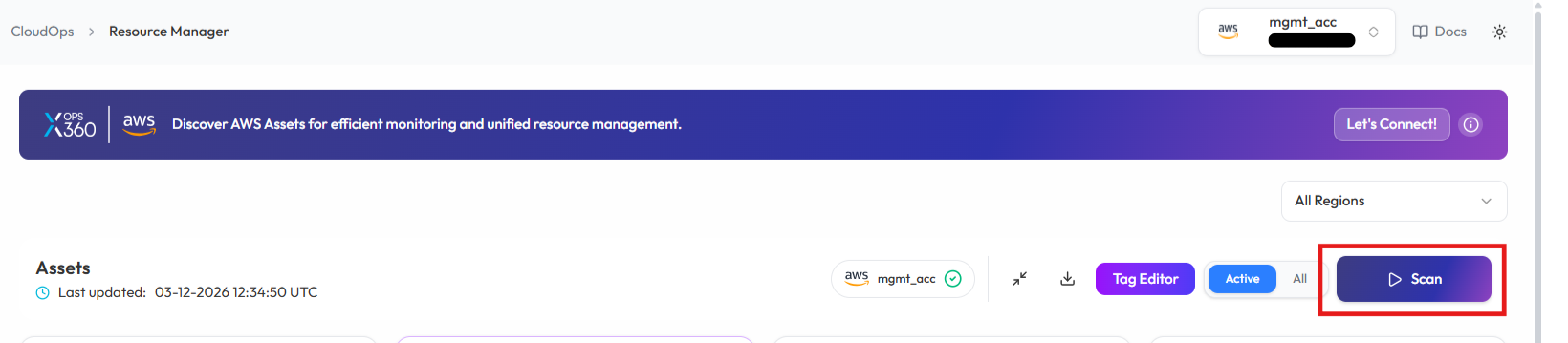
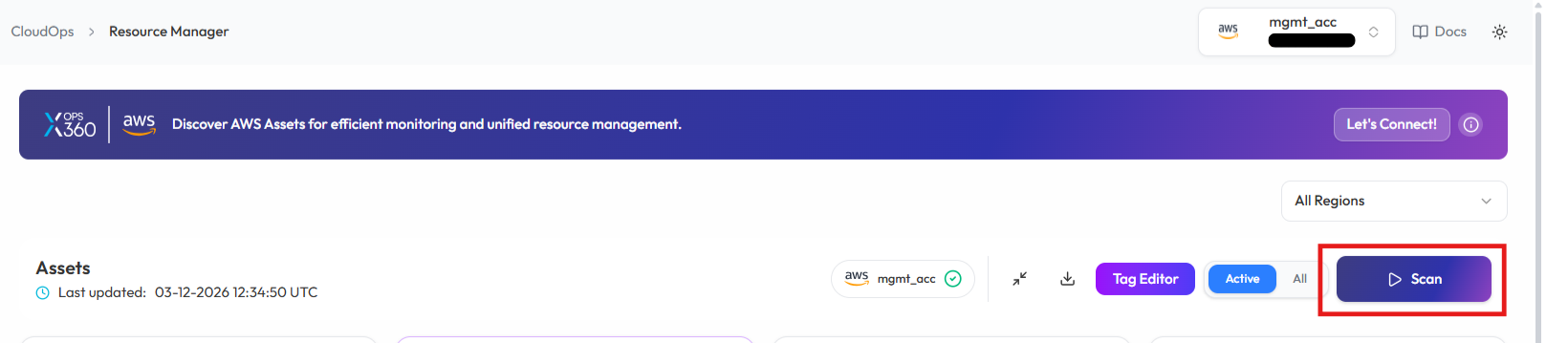
On the Resource Manager (Assets) page
-
Select the desired cloud account.
-
Click Scan to fetch the latest cloud asset information.
-
The platform will begin retrieving resources from the selected cloud account.
-
- Monitor and Review Results
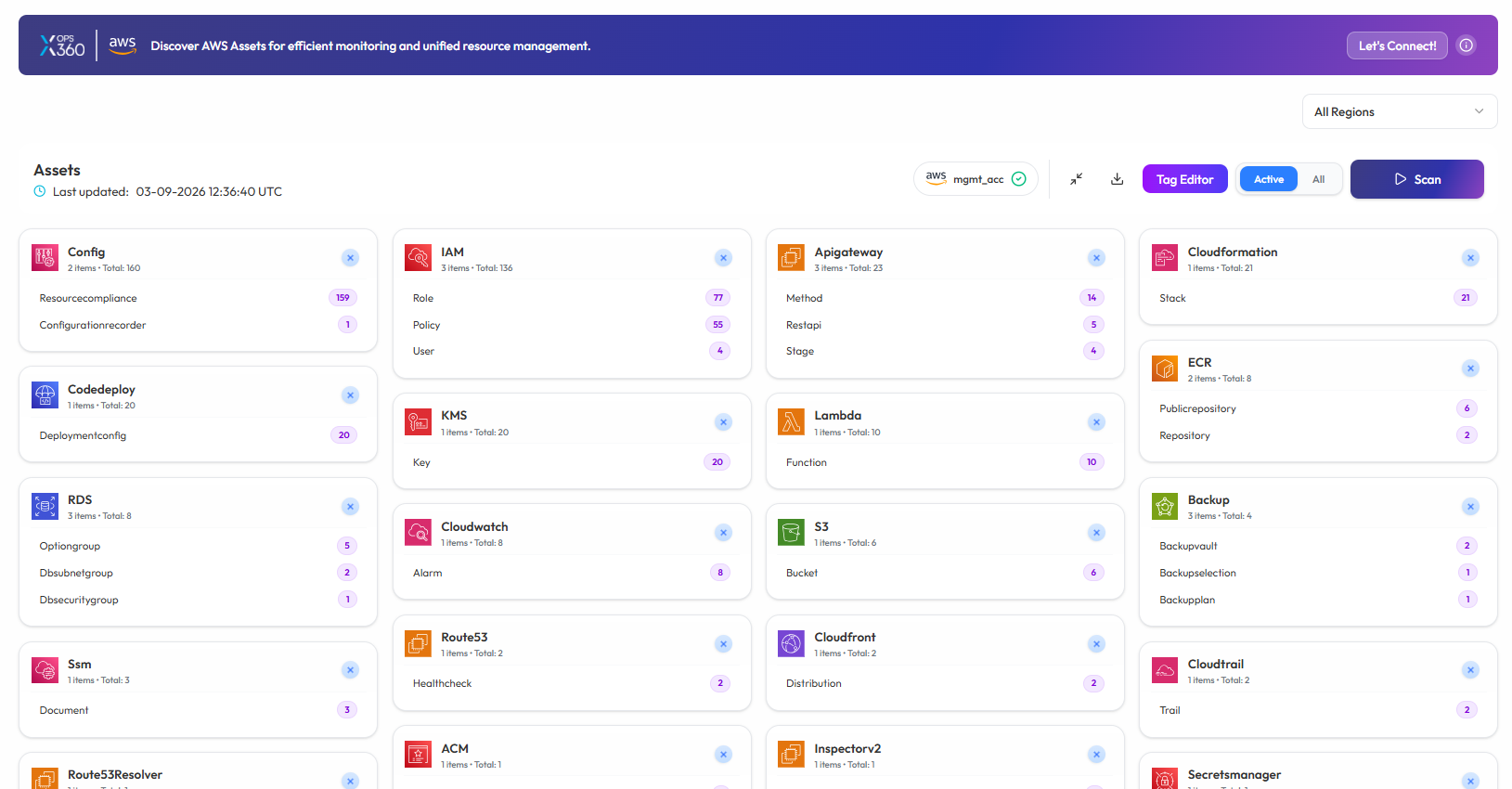
The system will fetch the cloud resources and update the Assets Dashboard.
Once completed : -
-
All discovered cloud resources will be displayed.
-
Resources will be categorized by service (EC2, ECS, IAM, S3, Lambda, etc.).
-
Users can review the inventory to better manage and monitor their cloud infrastructure.
-
Note:
- For accessing historic reports or addressing scan failures, refer to the Report History Page for further details and View error.