
2. Performing Cybersecurity Evaluations
OSINT Analysis Scan in Cyber Security
Perform an OSINT Analysis scan gather intelligence and identify potential vulnerabilities for a domain.
- Log In to the Platform
- Use your credentials to log in to the platform.
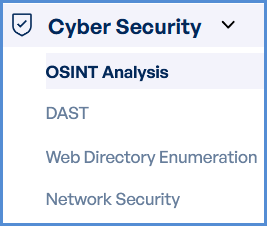
- Navigate to the Cyber Security Section
- Locate the Side Navigation Bar on the left side of the screen.
- Select the Cyber Security tab to access its features.
- Select OSINT Scan
- Within the Cyber Security section, find and click on the OSINT Scan option.
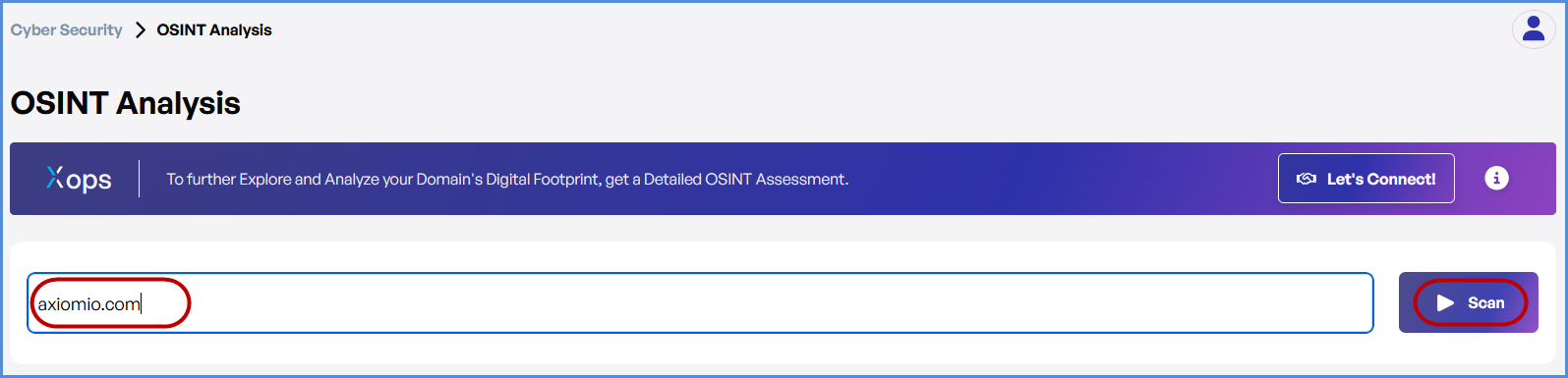
- Enter the Domain
- In the OSINT Scan input field, type the domain you want to scan (e.g., example.com).
- Initiate the Scan
- Click the Scan button to start the OSINT scan for the entered domain.
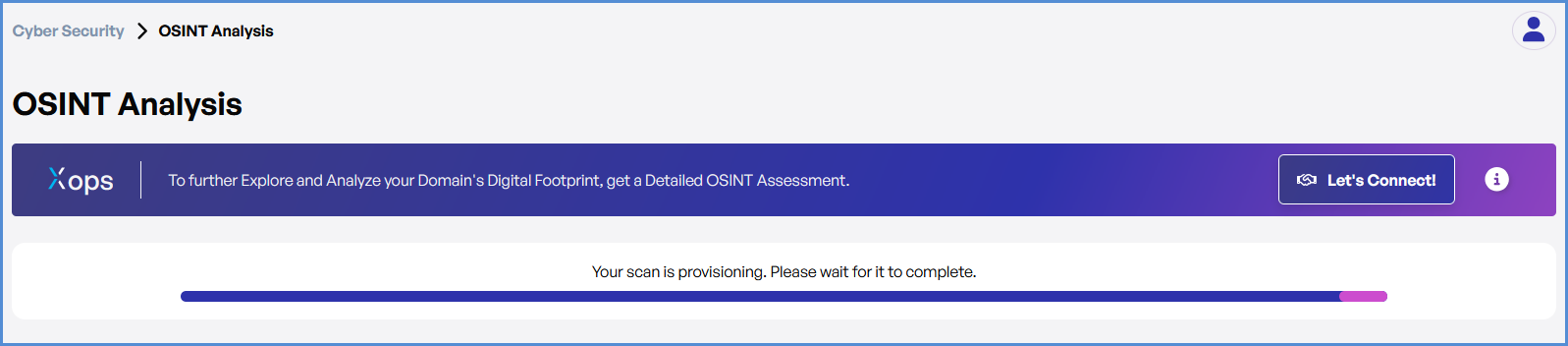
- Monitor and Review Results
- Monitor scan progress, and upon completion, a report will be generated then open it.
- Monitor scan progress, and upon completion, a report will be generated then open it.
-
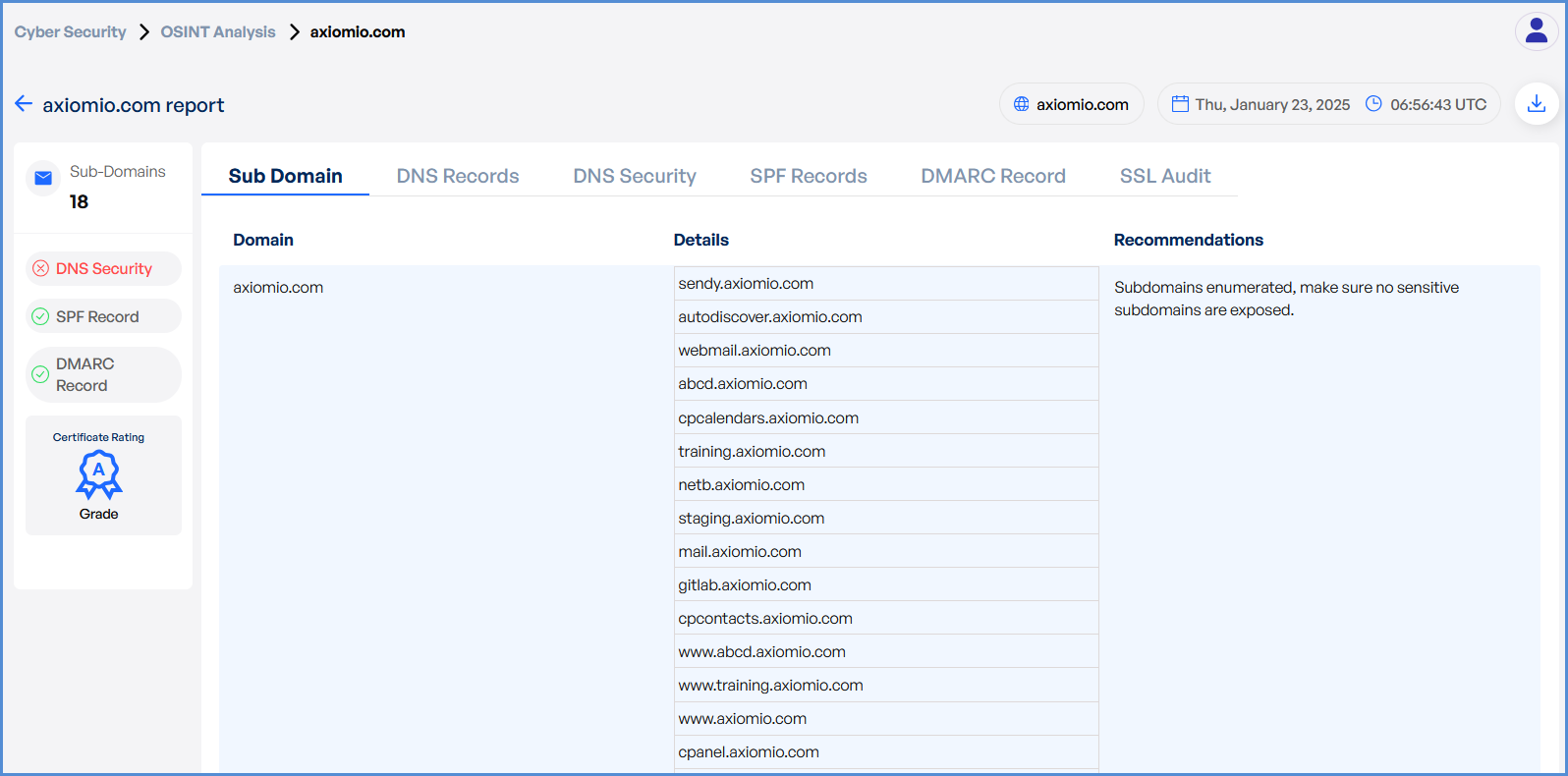
- Once the scan is complete, detailed results will be displayed for analysis.
- Use the results to identify potential vulnerabilities or gather intelligence on the domain.
DAST Scan in Cyber Security
Conduct a dynamic application security test (DAST) to detect vulnerabilities in a web application.
- Log In to the Platform
- Use your credentials to log in to the platform.
- Navigate to the Cyber Security Section
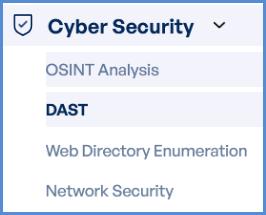
- Locate the Side Navigation Bar on the left-hand side.
- Click on the Cyber Security tab to access its features.
- Select the DAST Scan Option
- In the Cyber Security section, find and click on the DAST Scan option.
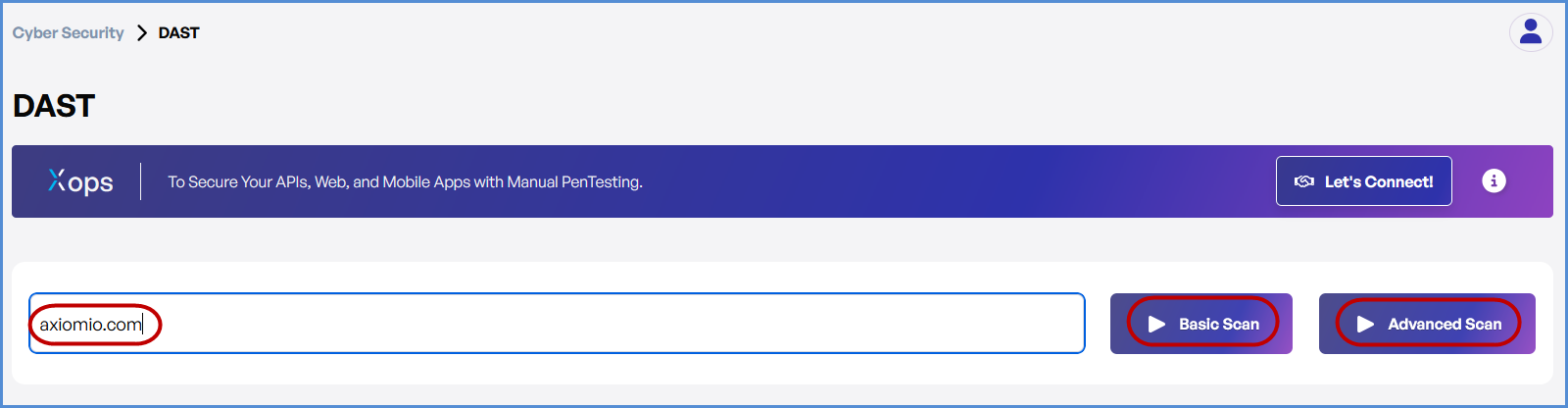
- Enter the Domain
- In the DAST Scan input field, type the domain you want to scan (e.g., example.com).
- Choose the Type of Scan
- Select the type of scan based on your needs:
- Basic Scan: Performs a general security assessment of the domain.
- Advanced Scan: Conducts a thorough and detailed security evaluation with advanced checks.
- Select the type of scan based on your needs:
- Initiate the Scan
- Once you’ve selected the scan type, click the Scan button corresponding to your chosen option to begin.
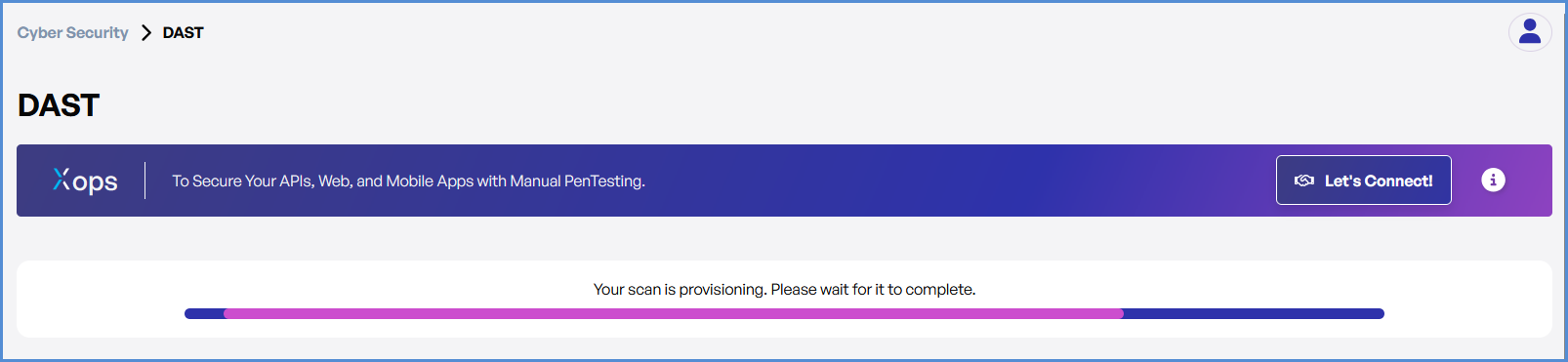
- Monitor and Review Results
- Monitor scan progress, and upon completion, a report will be generated then open it.
-
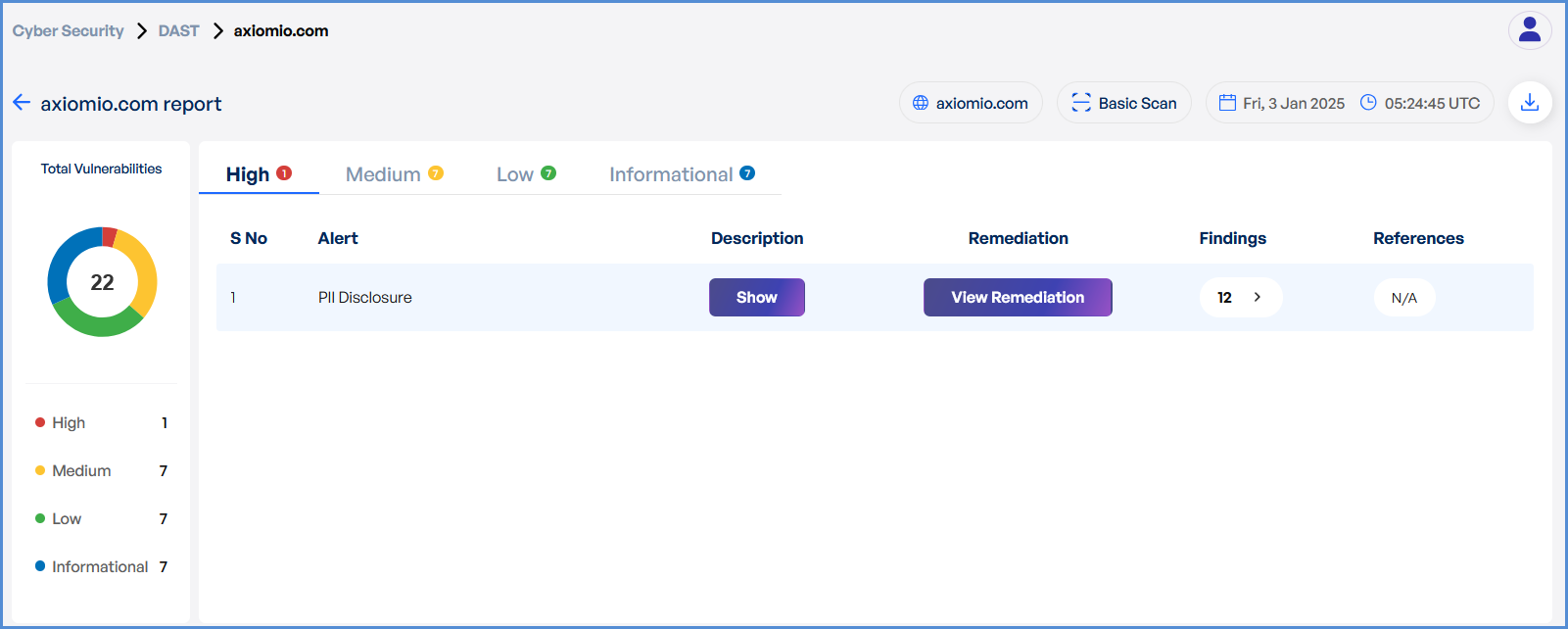
- After the scan is complete, detailed results will be displayed for review.
- Analyze the findings to identify vulnerabilities and take necessary actions.
Web Directory Scan in Cyber Security
Perform a web directory scan to enumerate and analyze accessible directories on a domain.
- Log In to the Platform
- Enter your credentials to access the platform.
- Navigate to the Cyber Security Section
- Open the Side Navigation Bar on the left-hand side.
- Click on the Cyber Security tab to access its features.
- Select the Web Directory Scan Option
- Within the Cyber Security section, locate and click on the Web Directory Scan option.
- Enter the Domain
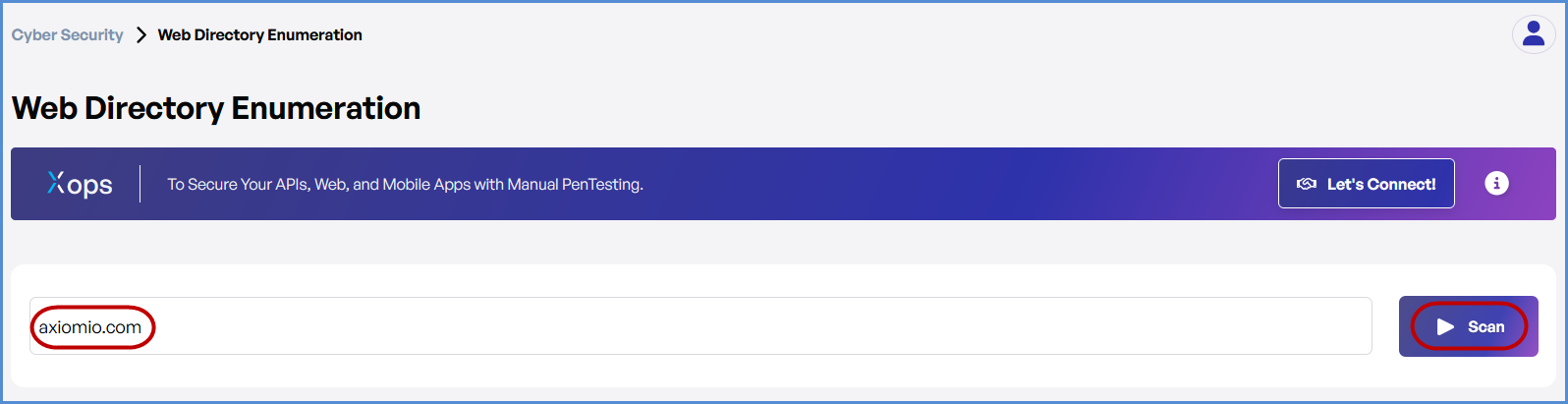
- In the Web Directory Scan field, type the domain you want to scan (e.g., example.com).
- Initiate the Scan
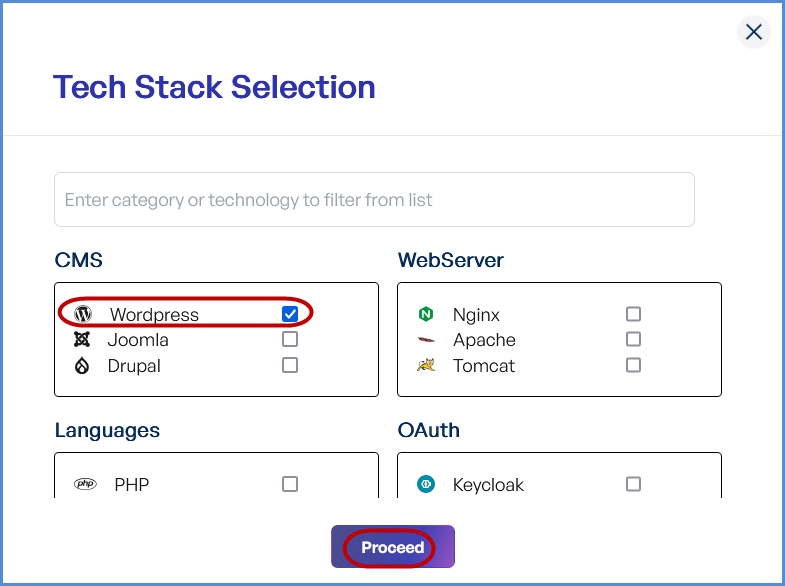
- Click the Scan button and select appropriate tech stack and click on Proceed to start the Web Directory Scan.
- Monitor and Review Results
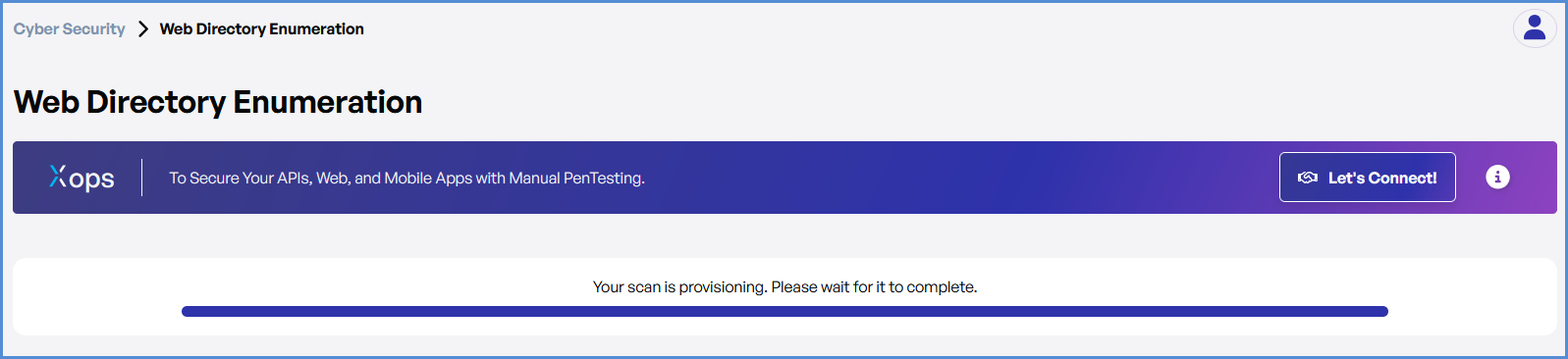
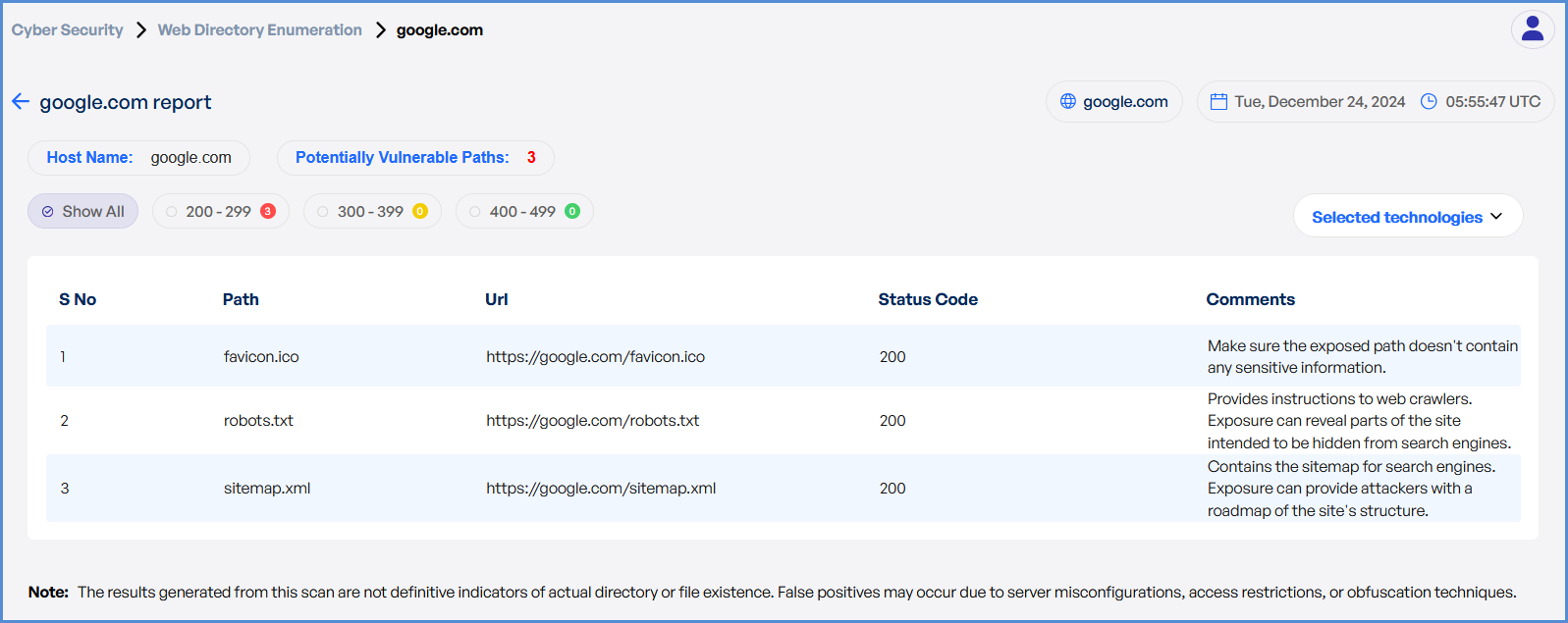
- Monitor scan progress, and upon completion, a report will be generated then open it.
-
- Once the scan is completed, detailed results will be available for review and analysis.
Network Security Scan in Cyber Security
Conduct a network security scan to identify vulnerabilities, misconfigurations, and potential threats.
- Log In to the Platform
- Enter your username and password to access the platform.
- Navigate to the Cyber Security Section
- Open the Side Navigation Bar located on the left-hand side.
- Click on the Cyber Security tab to access its tools and features.
- Select the Network Security Scan Option
- Within the Cyber Security section, find and click on the Network Security Scan option.
Enter the Domain
In the Network Security Scan field, type the domain you want to scan (e.g., example.com).
Initiate the Scan
Click the Scan button to begin the Network Security Scan.
Monitor and Review Results
The scan will progress, and you can track its status on the Cyber Security Dashboard.
Once the scan is complete, detailed results will be displayed for:
- Identified vulnerabilities
- Network misconfigurations
- Potential threats