
Performing Cyber Security Evaluations
OSINT Analysis Scan in Cyber Security
Perform an OSINT Analysis scan to gather intelligence and identify potential vulnerabilities for a domain.
- Log In to the Platform
- Use your credentials to log in to the platform.
- Navigate to the Cyber Security Section
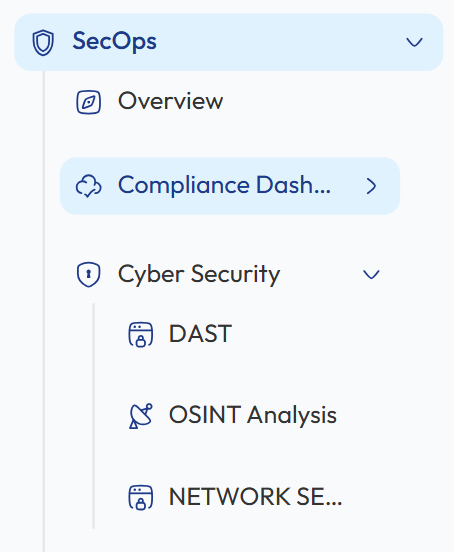
- Locate the Side Navigation Bar on the left side of the platform.
- Click on the SecOps section to expand its options.
-
Open Cyber Security Module
- Under SecOps, select Cyber Security to access the available security evaluation tools.
- Select OSINT Analysis Scan
- Within the Cyber Security section, click on OSINT Analysis to open the OSINT scanning interface where you can perform domain intelligence analysis.
- Enter the Domain
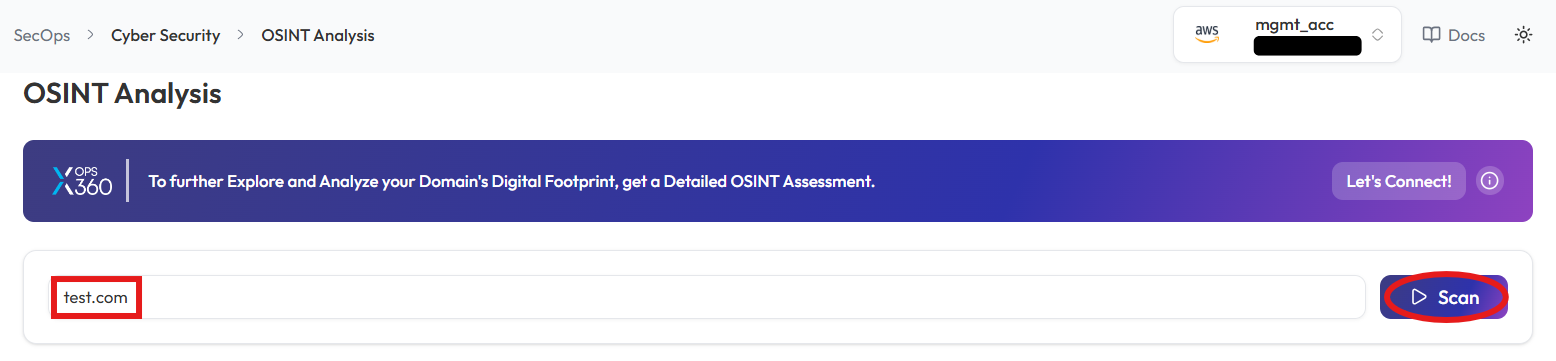
- In the OSINT Scan input field, type the domain you want to scan (e.g., example.com).
- Initiate the Scan
- Click the Scan button to start the OSINT scan for the entered domain.
- Monitor and Review Results
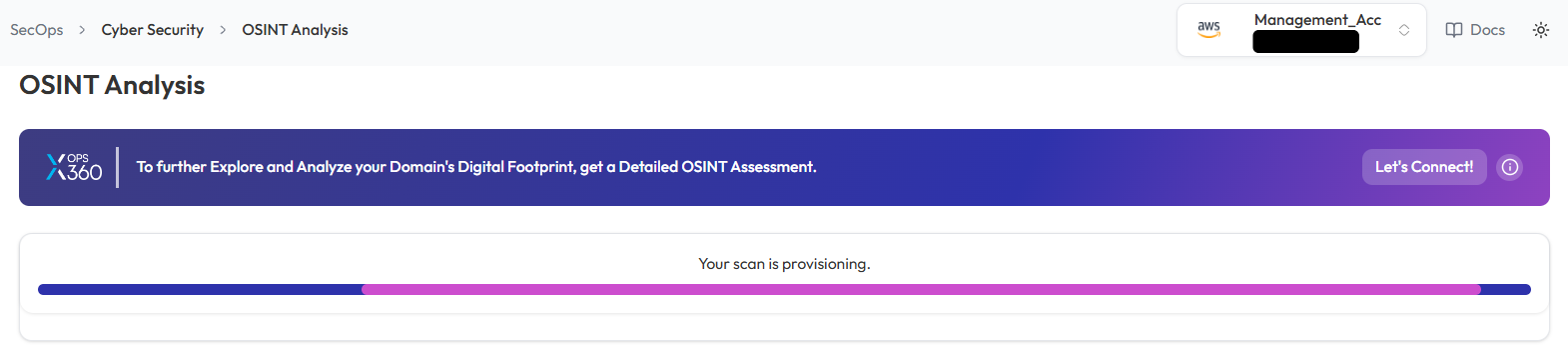
- Monitor scan progress, and upon completion, a report will be generated then open it.
- Monitor scan progress, and upon completion, a report will be generated then open it.
-
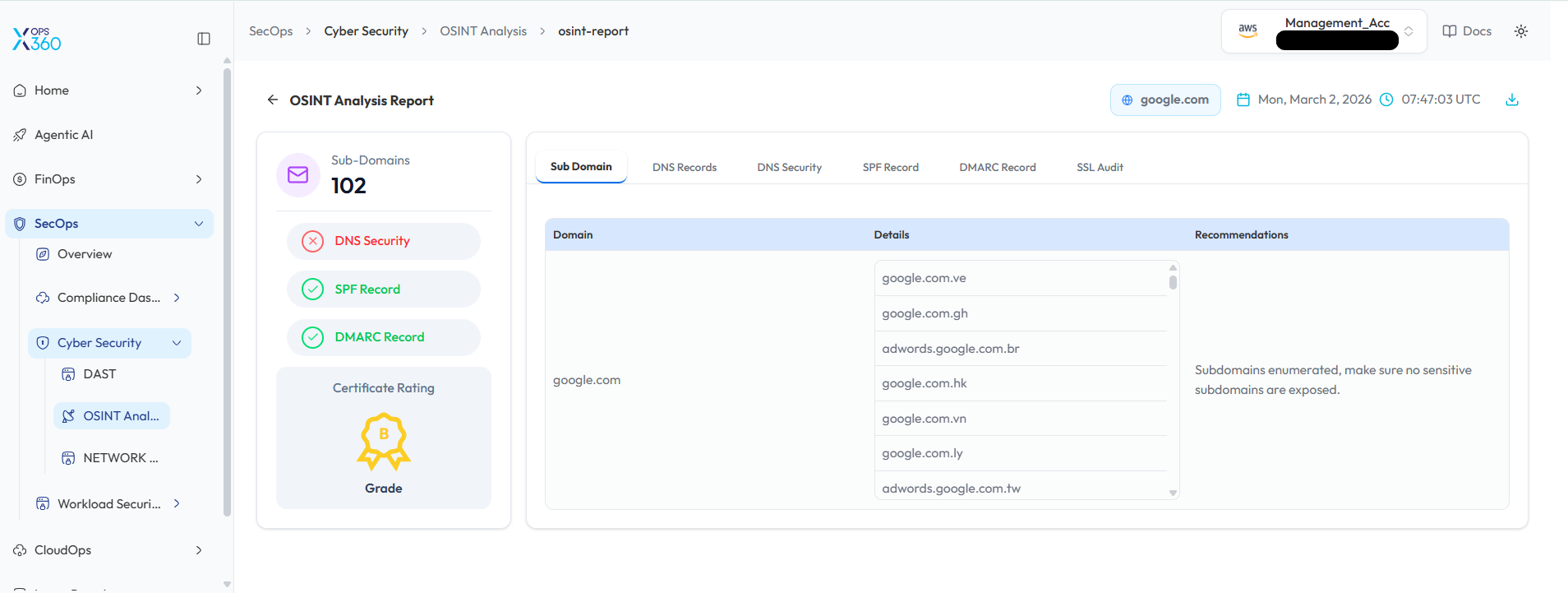
- Once the scan is complete, detailed results will be displayed for analysis.
- Use the results to identify potential vulnerabilities or gather intelligence on the domain.
DAST Scan in Cyber Security
Conduct a Dynamic Application Security Test (DAST) to detect vulnerabilities in a web application.
- Log In to the Platform
- Use your credentials to log in to the platform.
- Navigate to the Cyber Security Section
- Locate the Side Navigation Bar on the left side of the platform.
- Click on the SecOps section to expand its options.
- Open Cyber Security Module
- Under SecOps, select Cyber Security to access the available security tools.
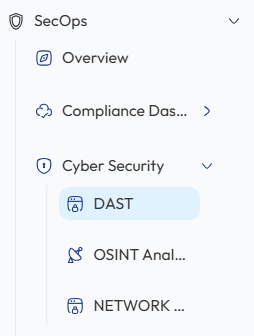
- Select the DAST Scan Option
- Within the Cyber Security section, select DAST to open the DAST scanning interface and begin testing the web application for vulnerabilities.
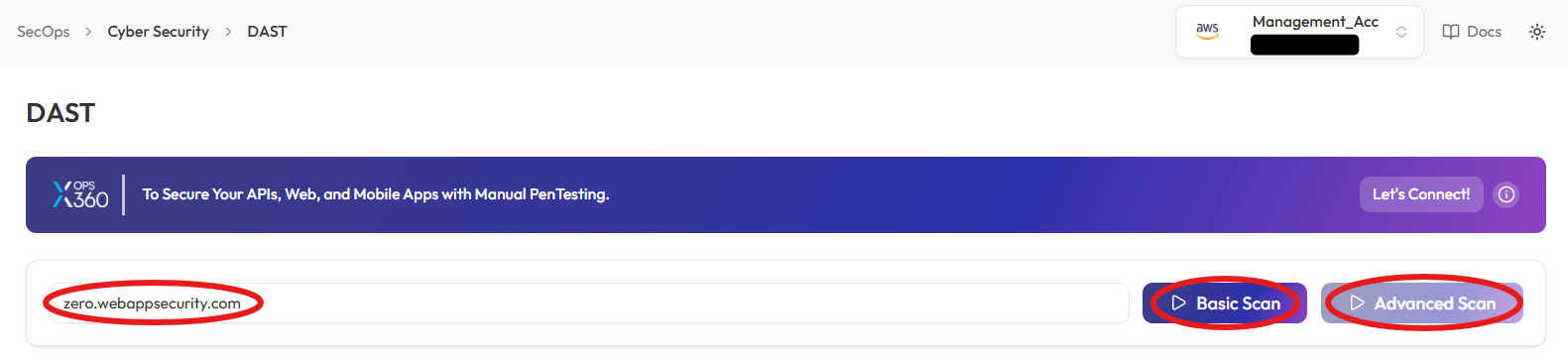
- Enter the Domain
- In the DAST Scan input field, type the domain you want to scan (e.g., example.com).
- Choose the Type of Scan
- Select the type of scan based on your needs:
- Basic Scan: Performs a general security assessment of the domain.
- Advanced Scan: Conducts a thorough and detailed security evaluation with advanced checks.
- Select the type of scan based on your needs:
- Initiate the Scan
- Click respective button to start scanning process
- Monitor and Review Results
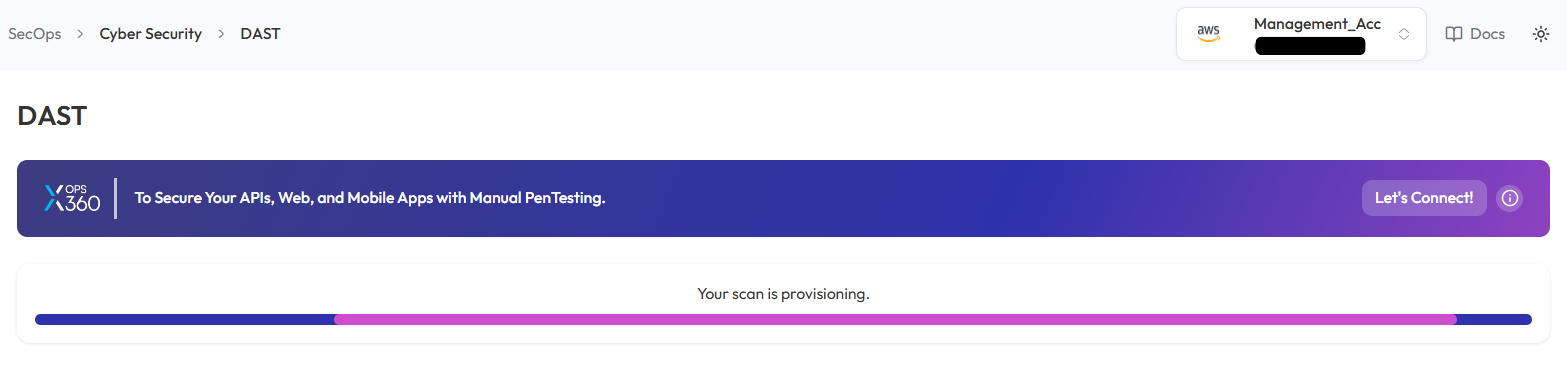
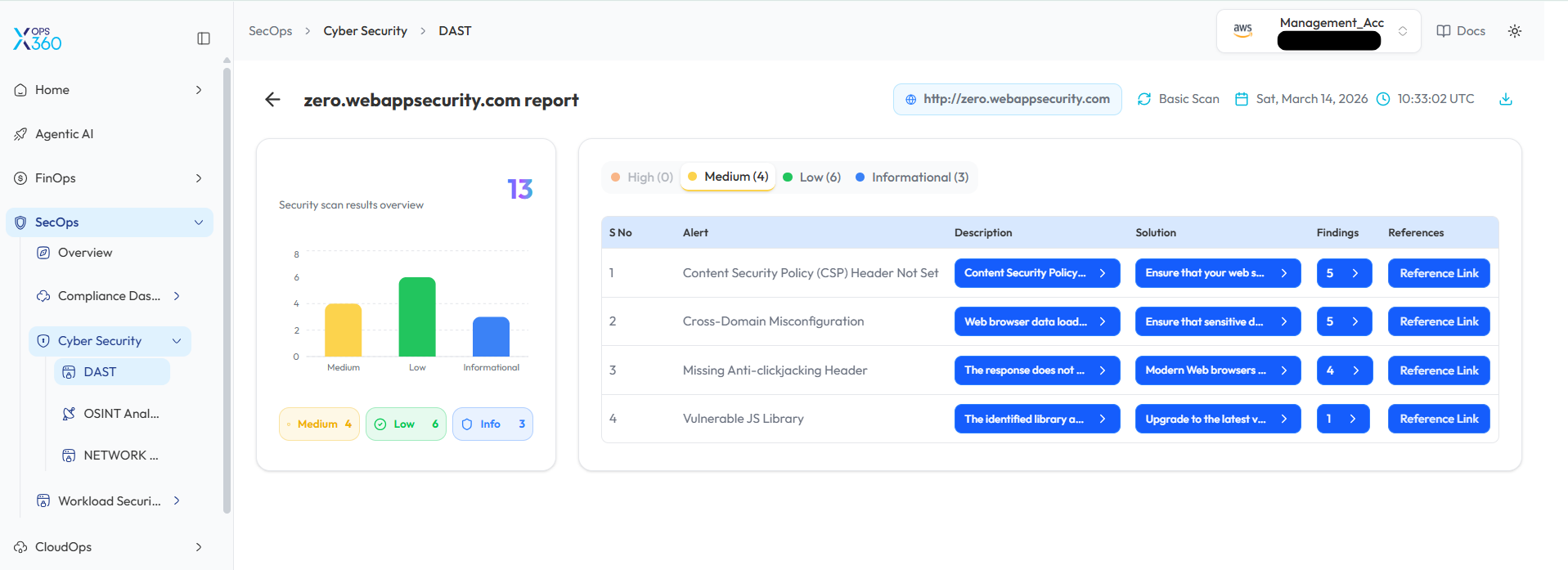
- Monitor scan progress, and upon completion, a report will be generated then open it.
-
- After the scan is complete, detailed results will be displayed for review.
- Analyze the findings to identify vulnerabilities and take necessary actions.
Network Security Scan in Cyber Security
Conduct a network security scan to identify vulnerabilities, misconfigurations, and potential threats.
- Log In to the Platform
- Enter your username and password to access the platform.
- Navigate to the Cyber Security Section
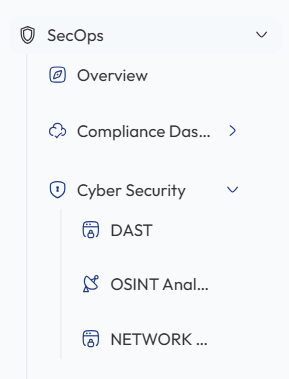
- Locate the Side Navigation Bar on the left side of the platform.
- Click on the SecOps section to expand its options.
- Open Cyber Security Module
- Under SecOps, select Cyber Security to access the available security tools.
- Select the Network Security Scan Option
- Within the Cyber Security section, select Network Security to initiate the network security scanning process and analyze potential risks.
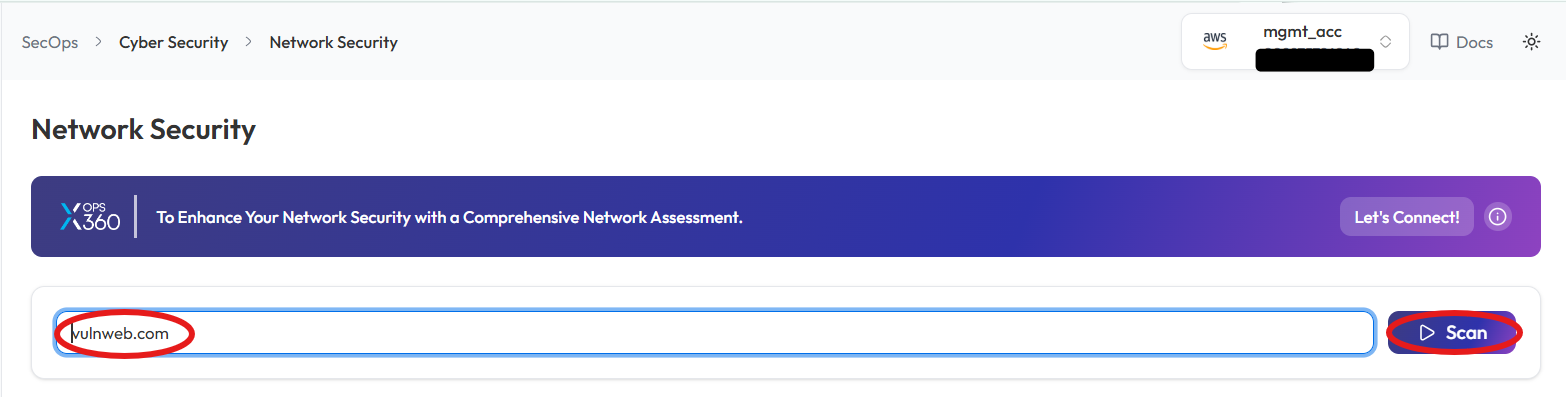
- Enter the Domain
- In the Network Security Scan field, type the domain you want to scan (e.g., example.com or IP Address)
- Initiate the Scan
- Click the Scan button to begin the Network Security Scan.
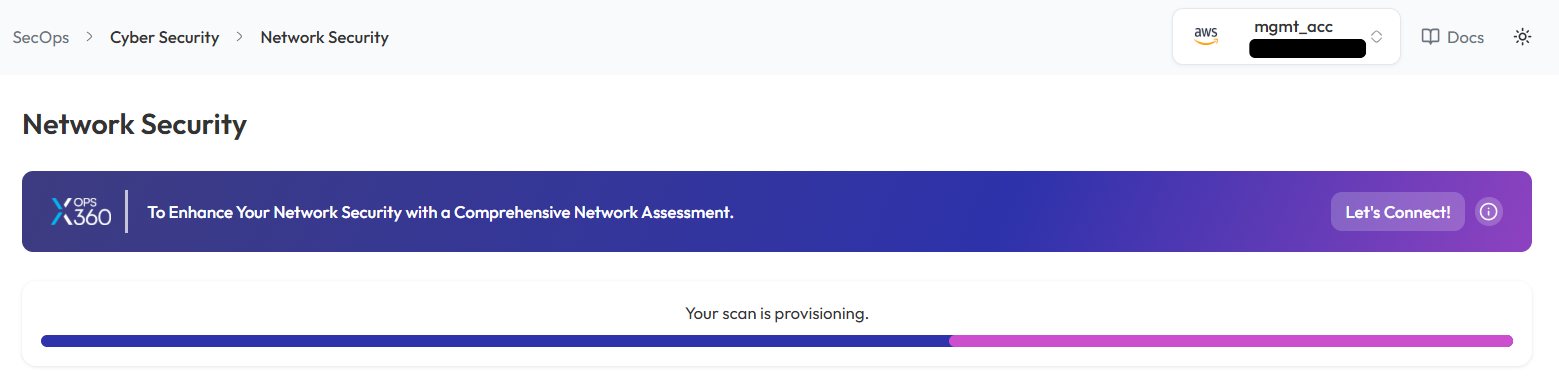
- Monitor and Review Results
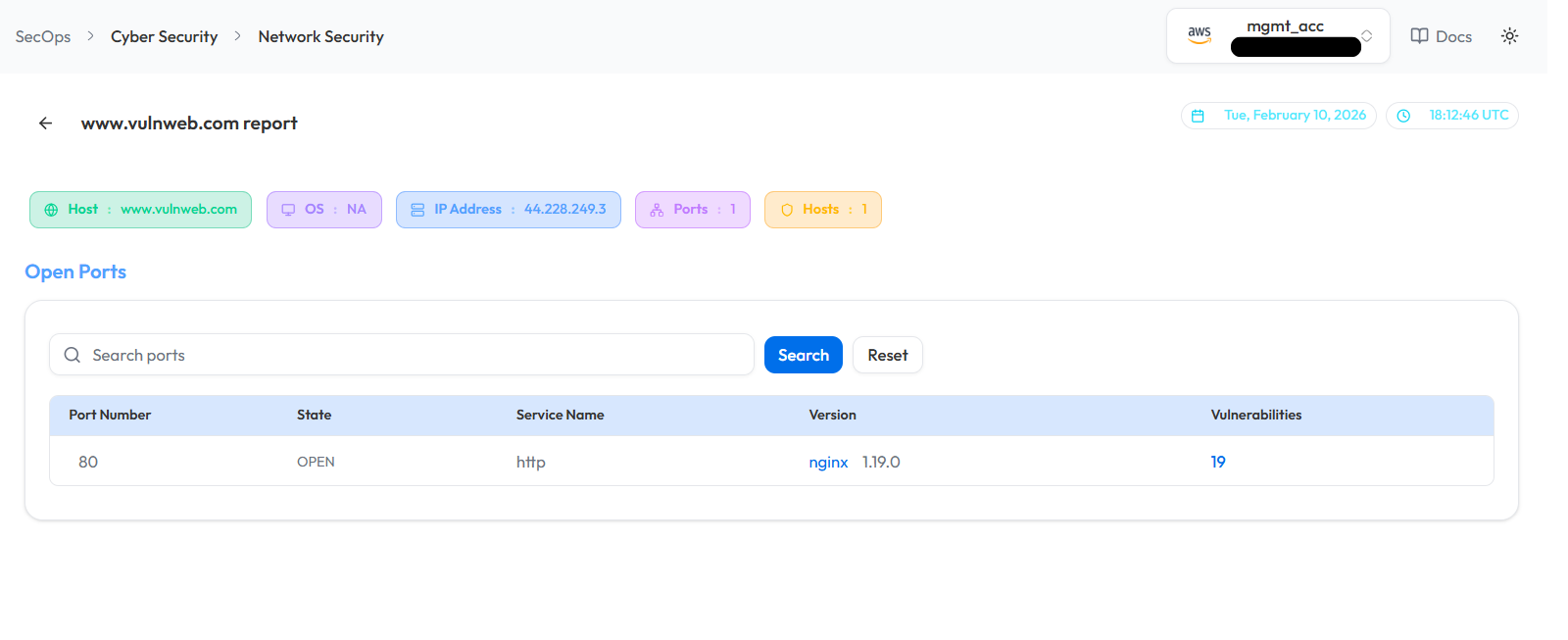
- Monitor scan progress, and upon completion, a report will be generated then open it.
-
- Once the scan is complete, detailed results will be displayed for:
- Identified vulnerabilities
- Network misconfigurations
- Potential threats
- Once the scan is complete, detailed results will be displayed for:
Note:
- For accessing historic reports or addressing scan failures, refer to the Report History Page for further details and View error.